

Create or update a CRS rate plan, choose the rooms and booking policy it uses, and maintain its guest-facing name and description.
Before you start
- Select the correct property. You need permission to edit its CRS settings to save changes.
- Have the CRS room types and booking policies you need available in CRS Settings. Standard rate plans are separate from CRS rate plans; map them only when that relationship is intended.
- This page configures the plan. It does not enter nightly rates or allocation. An enabled plan still needs usable room assignments, channel mappings, rates, availability and applicable daily restrictions before it can be offered for a stay.
- Changes are submitted with a save button, not when you select a field or switch a content tab. Saving can also notify connected services that follow CRS settings. Do not treat Save as a preview or as proof of channel acceptance.
Open the rate plan
- Select the intended property in the property selector.
- Open Admin → Settings - CRS.
- Select the Rooms & Rates tab on CRS Settings.
- Find Rate Plans under Inventory.
- Click a plan's name to edit it, or Add New to create one.
Check the property selector and plan name before changing anything. A rate plan belongs to the selected property.
Create a rate plan
- Enter Name.
- Choose Enabled. New plans default to Yes. Choose No if you are preparing a plan that must not yet be offered.
- If Standard Rate Plan Mapping is shown, choose the corresponding standard plan or leave it blank when no mapping is intended. A new CRS plan does not create a standard rate plan.
- Choose Booking Policy, or retain Default (policy name) to follow the property's default. Booking Policy Calendar rules can override this choice for the stay.
- Under Room Types, select every CRS room type that may offer this plan. All Room Types selects all editable choices; clicking it when all are selected clears them. No selection means the plan has no assigned rooms, not that it applies to every room.
- Click Save & Continue.
- On the saved plan, complete the Content fields described below.
The first successful save returns to the saved plan. Restrictions, add-on summaries and Content are available on the existing-plan screen; they are not part of the initial new-plan form.
Edit an existing plan
- Review Name, Enabled, Standard Rate Plan Mapping and Booking Policy.
- Review Room Types. Clearing a room removes that room's association with this plan when you save. It does not delete the room type.
- Review the related sections and update the Content tabs you use.
- Click Save to save and return to CRS Settings. Alternatively, open the arrow beside Save and choose Save & Refresh to save and remain on the editor.
- Reopen or refresh the plan and check the stored values.
When changing an established standard-rate mapping: verify the corresponding channel mapping as well. This field is a setup association; changing it is not confirmation that existing channel mappings or rates have been moved.
Cancel leaves the editor without submitting your unsaved field changes. It does not undo an earlier save.
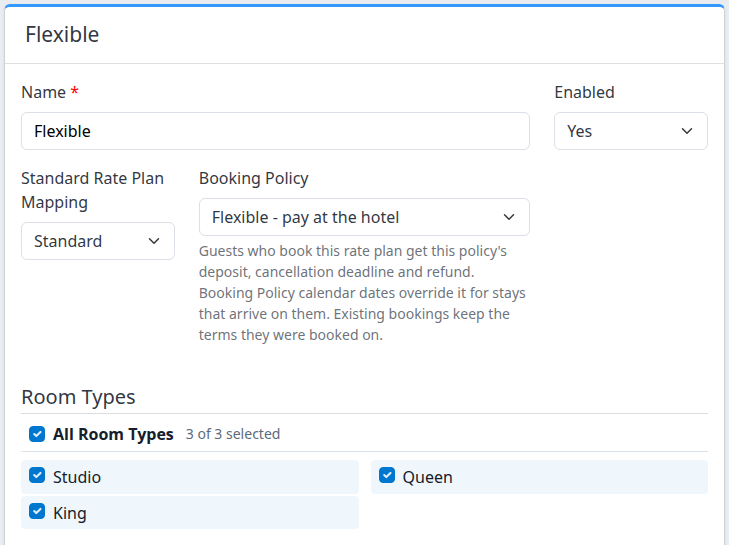
An existing demo rate plan. Your room names and policy choices will differ.
Maintain the guest-facing content
The Name at the top identifies the CRS plan. The Content section holds a separate name and description for each property content profile. Tabs use the profile names; they may be named after languages, as in the example.
- Open the existing rate plan.
- Scroll to Content.
- Select the content-profile tab you want to maintain.
- Enter its Name, marked with a red asterisk.
- Enter Description if you need explanatory text for guests.
- Repeat for the other profiles you use.
- Click Save or Save & Refresh.
Switching tabs does not save. Review every edited tab before submitting. A hosted booking offer can fall back to the plan's top-level name when a profile's name is blank; do not rely on that fallback instead of supplying the guest-facing content you intend.
Keep descriptions consistent with the selected booking policy and offer. Writing “breakfast included” or a cancellation deadline in Description does not configure an add-on or change the booking policy.
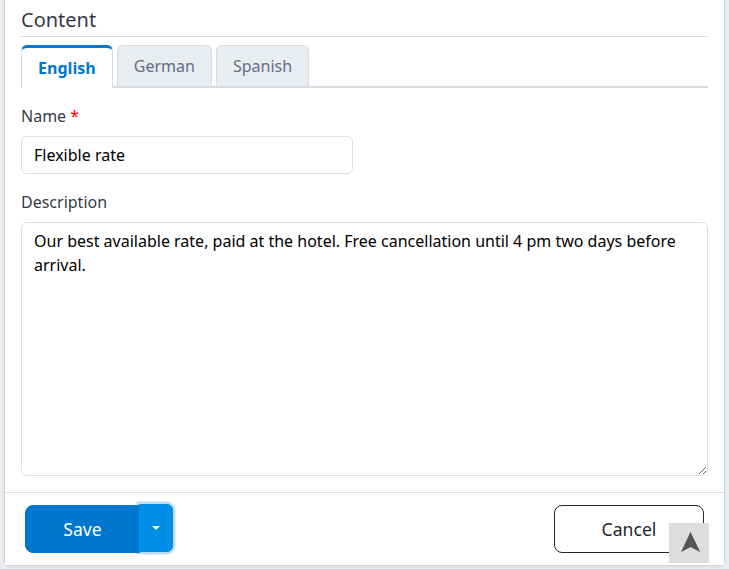
Content belongs to the selected profile. The text shown here is a demo example, not a policy to copy.
Review restrictions and add-ons
Restrictions
For an existing plan, Restrictions lists saved restriction records by ID and Name. Add New opens a separate restriction editor; an existing record's name opens that record, and its Delete link opens a separate confirmation.
Do not rely on a record appearing in this list as proof that it is enforcing a sales restriction. Confirm its application with ChannelRUSH support before relying on it to prevent bookings. Check the effective daily restrictions and the result of a booking search for the intended stay. This guide does not establish that these saved records enforce minimum stays, arrival/departure closures or cutoff rules.
Save any pending rate-plan edits before leaving for a separate restriction screen. Restriction editing is a separate task, not part of this page's Save submission.
Add Ons - Inclusive / Included In Price
This read-only list shows add-ons associated with this rate plan and configured as included without a separate charge.
Add Ons - Available
This read-only list shows associated add-ons with other pricing types. The lists do not establish that every item is enabled, available for every room or offered for every stay.
To change add-on configuration, return to CRS Settings → Rooms & Rates → Add Ons and open the relevant add-on. Changing the rate-plan description does not add an item to either list. If the property has no add-ons, these sections are absent; if it has add-ons but none associated with this plan, the headings can have no items beneath them.
Check the result
- After saving, reopen the same plan from CRS Settings → Rooms & Rates → Rate Plans, or review it after Save & Refresh.
- Confirm Name, Enabled, the standard mapping, the booking policy and the selected room types.
- Open each content-profile tab you changed and confirm its name and description.
- If the plan is intended to sell, use your property's booking engine to search the intended dates, room occupancy and offer. Review the displayed name, description and policy without completing a reservation.
A settings-saved confirmation means the application completed its save path. It is not evidence that an external channel accepted an update, that every connected service refreshed, or that the plan is bookable for every date. A plan can be configured correctly and still be absent for a stay with no availability or usable rate.
If an error occurs during saving, reopen the plan and compare the stored settings and content before retrying. Some settings may already have been saved even when a later part fails. If the result is unclear, stop and contact support rather than submitting the same change repeatedly.
Temporarily withdraw or delete a plan
For temporary withdrawal, set Enabled → No and save. This keeps the CRS plan for later use while excluding it from eligible booking offers. Review the saved setting; do not assume this is a cancellation of existing reservations or an immediate update to every external channel.
Permanent deletion is a separate action:
- Save or abandon any pending editor changes.
- Return to CRS Settings → Rooms & Rates → Rate Plans.
- Locate the intended plan and click its Delete link.
- At Are you sure you want to proceed with this delete?, click Cancel if you are unsure. Click Delete only when permanent removal is intended.
Deletion removes the CRS plan and its associated room assignments, restriction records, content, promotion associations and plan-specific Booking Policy Calendar entries. It is not deletion of the property's standard rate plan or a reservation-cancellation workflow. The confirmation is generic, so verify the selected plan before opening it. There is no undo control in this workflow; ask support before deleting a plan whose dependencies are unclear.
Field reference
| Field or section | What it changes | Default, requirements and interactions |
|---|---|---|
| Name | Identifies the CRS rate plan; can also be the guest-name fallback. | Required. A new plan starts blank. A whitespace-only name is not valid. Example: Flexible. |
| Enabled | Whether the plan can be eligible for booking offers. | New plans default to Yes. No excludes the plan; Yes alone does not guarantee bookability. |
| Standard Rate Plan Mapping | Associates this CRS plan with a standard property rate plan for setup. | Optional; blank means no standard-plan association. Shown only if standard plans exist. The choices include the current mapping and standard plans not already assigned to another CRS plan. |
| Booking Policy | Selects the plan's normal deposit, cancellation and refund policy. | New plans use the property default. Only this property's policies are offered. Calendar policies can override the plan choice; a stricter policy applying to every night can also affect the stay. Shown when policies exist. |
| Room Types | Selects the CRS rooms associated with the plan. | New plans start with none selected. Unchecking a room removes the association on save. At least one is needed for the plan to be active for rooms. |
| All Room Types | Selects or clears the editable room choices. | Changes the current form selection only; use a save button to persist it. |
| Restrictions | Lists saved restriction records and links to their separate editors. | Existing plans only. A listed record is not confirmation of enforcement; see the warning above. |
| Add Ons - Inclusive / Included In Price | Shows associated included add-ons. | Read-only here. Does not validate the add-on's current availability or enabled state. |
| Add Ons - Available | Shows associated add-ons with other pricing types. | Read-only here. Manage their configuration in the Add Ons section of CRS Settings. |
| Content profile tab | Chooses which profile's plan content you are editing. | Existing plans only. Tabs follow the property's content profiles; a new profile's values may be blank. |
| Content → Name | Supplies the guest-facing name for that profile. | Marked required on the form. Enter it for each profile you use; verify it after saving. Example: Flexible rate. |
| Content → Description | Supplies the profile's explanatory text for the plan. | Optional. Does not alter rates, included items or policy rules. |
Common problems
- “No room types assigned to this rate plan, not active.” No rooms are associated. Select the intended rooms and save; then reopen the plan. If the assignments do not remain, contact support.
- The standard plan you expect is missing from the mapping list. It may already be assigned to another CRS plan, or may not exist for the selected property. Check the property and current CRS plan mappings before changing anything. Ask support if you cannot establish the intended association.
- The plan does not appear in a booking search. Check Enabled, room assignments, the room's enabled status, channel setup/mappings, rates, availability and effective daily restrictions for the requested stay. If these appear correct, send support the property, plan, room, dates and occupancy used in the search.
- The booking policy differs from the plan's selection. Review Booking Policy Calendar overrides and whether you selected Default. Existing bookings with saved terms keep those terms; changing this setting is not a way to rewrite them. Ask support to review any unexplained difference.
- The page reports a missing name or refuses a booking policy. Supply a nonblank top-level Name and choose a policy from the current property's dropdown. Recheck your selections before saving again. If the error remains, provide the exact message to support.
- Content tabs or the other existing-plan sections are missing. Save a new plan with Save & Continue first. Content tabs also require property content profiles. If an existing plan has no profiles to edit, ask your administrator or support to check the content setup.
- Controls are disabled. Confirm your permission to edit CRS settings with your administrator. Do not change accounts or properties to work around an access restriction.
- A save errors, times out or leaves an uncertain result. Reopen the plan and compare both settings and content. Do not assume nothing was saved or repeatedly retry. Give support the property, plan, action time and time zone, and the error text; do not send passwords or payment details.
- An old edit link returns Not Found. The plan may have been deleted or belong to a different property. Open it again from the selected property's Rate Plans list; contact support if it is listed but still cannot be opened.
Related
- ChannelRUSH CRS — broader CRS setup.
- ChannelRUSH CRS - Channel Settings — channel-side CRS mapping.