

Use PMS ARI Log to find messages received from your property management system (PMS), check their recorded processing status and collect useful information for an inventory investigation. ARI means availability, rates and inventory.
Before you start
Select the property you want to investigate. This log searches one property at a time, within your account's access. Admin → PMS ARI Log appears for properties with a PMS/inventory-receive connection.
This is an inbound-message log, not an outbound channel-delivery report. A Successful message does not establish that a booking channel accepted an update. Some PMS connections are polled rather than sending messages directly; an empty log does not, by itself, mean the connection has stopped working.
The page states that message history is limited to the past 90 days. Treat this as the normal searchable-history window, not a guarantee that every message is retained or that older records have been permanently deleted.
Find a message
- Select the intended property in the property selector.
- Open Admin → PMS ARI Log.
- Leave Status at All for an initial investigation, or choose the processing status you need.
- Set Date and Time around when the PMS sent the message. These are message creation times, not the inventory's stay dates. Use the time zone named beneath the controls.
- Add Search Text, Message Name, Message ID or Room Type only when you need to narrow the search.
- Select Search. Editing a field alone does not apply it.
- Check the retained fields and Filtered by chips, then review the Info and Message Text columns.
All populated filters apply together. If you have an exact Message ID, clear unrelated filters first: that ID does not override Status, text, room or date filters. The ID is ChannelRUSH's log-message ID, not a reservation number or outbound update transaction ID.
To remove one applied filter, select its Filtered by chip. Removing the date chip clears the date/time window. Cancel returns to Admin; it is not a clear-all-filters button.
Read the results
The log normally returns up to 50 messages per page, in descending message-ID order. The « and » paging controls, when available above and below the results, move toward newer and older messages respectively. Applied filters remain in effect. A full final page can lead to an empty next page; that does not mean messages were removed.
- Info: message name, recorded processing status, creation timestamp in your user time zone, internal message ID and View link.
- Message Text: the incoming request body, often XML or JSON. The list displays at most the first 1,000 characters of each message. The preview can end without an ellipsis; do not treat it as the complete request.
- No rows beneath the headers: no messages matched the current property and filters in the searchable store. This is not a delivery-success indicator.
What Status means
| Status | Meaning | What it does not establish |
|---|---|---|
| Pending | The message is recorded and awaiting processing. | That its inventory has been applied or sent onward. |
| Processing | Processing has started. | That processing will finish successfully. |
| Successful | The inbound processor recorded a successful outcome. | That the message contained usable inventory for every product, generated outbound updates or was accepted by an OTA. |
| Unsuccessful | The row is displayed as unsuccessful. | That nothing was saved, that the cause is still active or that repeating the PMS send is safe. |
If you know an unsuccessful message exists but cannot find it with Status = Unsuccessful, try All and its Message ID with other filters cleared. Some reviewed failures can still display as Unsuccessful without appearing in that filtered search.
Open the complete message safely
- Select View beside the relevant message. It opens a separate tab so you can retain the search results.
- Check the message name, ID and timestamp before interpreting its contents.
- Read REQUEST for the incoming message and RESPONSE for the stored response.
- Use Save Log File only when you need a local copy for an investigation.
The response can be an intake acknowledgment rather than the final processing outcome. It is not a separate guarantee of successful channel delivery. The downloaded log contains request and response sections and uses UTC timestamps; compare these carefully with the page's user-time-zone timestamp. The section timestamps refer to message creation, not separate request/response duration measurements.
Treat message bodies and downloaded logs as confidential. They can contain credentials, tokens or other sensitive information. Before sharing a screenshot, search URL or file, remove secrets and unnecessary personal or commercial information. Prefer giving support the property, message ID, timestamp and time zone first. Do not paste raw payloads into a public conversation.
If an old View link fails, return to the log and search again rather than changing IDs in the URL. Give support the known message ID and property if the record cannot be opened.
Check the inventory outcome
Finding the message establishes that a record is present; its status describes inbound processing only.
- Check the expected PMS values in Reports → Rates & Availability, using the relevant PMS image and affected inventory dates.
- Investigate any expected onward update in Updates → Status. Apply the relevant search filters and select Search on that page as well.
- If the stored PMS values, outgoing update status and expected channel values disagree, collect the property, PMS/channel, room or rate plan, affected dates, message ID and action time/time zone for support.
Do not resend PMS inventory solely because this log is empty or a message is marked Unsuccessful. Reconcile the stored inventory and outbound status first; this page has no retry or resend control.
Field reference
| Field or control | What it does | Example or important detail |
|---|---|---|
| Status | Filters the stored inbound processing status. Defaults to All. | Start with All when an exact message appears to be missing. |
| Search Text | Finds a case-insensitive text fragment in the request body. Does not search the stored response. Blank adds no text filter. | Search a distinctive product code rather than a password or complete payload. |
| Message Name | Finds a case-insensitive fragment of the recorded message name. Blank adds no name filter. | Use part of the name shown in an earlier result. |
| Message ID | Matches one internal numeric log-message ID for the selected property. | Other filters still apply. Copy the ID from Info or the message viewer. |
| Date and Time — first date/time | Lower bound for message creation. A date without a time starts at midnight in the indicated zone. | Leave blank for no lower bound; a time without its date has no effect. |
| Date and Time — second date/time | Upper bound for message creation. A date without a time includes the entire final day; a specified time includes its whole minute. | Leave blank for no upper bound. Do not place it before the first endpoint. |
| Room Type | Searches request text for the selected PMS room code. Defaults to All and appears when room mappings are available. | Text matching can also find that code elsewhere in a message; inspect the request to confirm the affected room. The choices are not a combined catalogue of every PMS connection. |
| Search | Applies the current filters and restarts at the first results page. | Check the resulting chips and retained values. |
| Filtered by | Shows applied filters and lets you remove them. | Removing the date chip clears the whole date/time window. |
| Cancel | Returns to Admin. | Does not retry a message or change inventory. |
Text matching treats % as a wildcard for any sequence and _ as a wildcard for one character. Prefer a distinctive fragment without these characters when you want a straightforward lookup.
The date controls are below the text filters; the time-zone note explains how to interpret them.
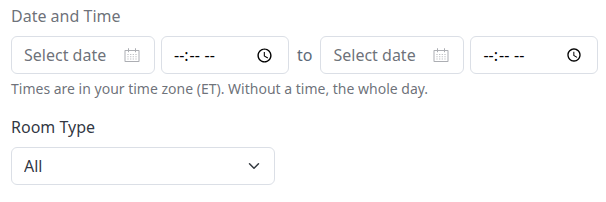
Date/time and room filters in the demo property. Blank date/time controls add no date narrowing; select Search after changing them.
Common problems
- The results are empty. Check the selected property, remove restrictive chips and search again with Status All. Confirm the message falls within the normal searchable history. If it still cannot be found, ask support whether this PMS integration produces inbound log messages; provide the expected send time/time zone and affected products/dates, not credentials.
- “The End Date cannot be before the Start Date.” Correct the date/time order, then select Search again. An exact Message ID does not bypass this check.
- The Room Type choice is absent or unexpected. The choices depend on stored PMS room mappings. Use All and a distinctive Search Text fragment if appropriate; ask support to confirm the mapping rather than editing configuration to make a log appear.
- Successful, but the channel still has different inventory. Compare the PMS image and outbound Updates Status. A successful inbound record is not channel acceptance. Escalate with both the message reference and the affected dates/products.
- A message stays Pending or Processing, or repeats as Unsuccessful. Recheck the same ID and collect the current status and timestamp. Ask support to inspect processing before requesting another PMS send; no completion-time promise is implied by these states.
- A preview seems incomplete or a response conflicts with the status. Open View for the full request. Remember that the response may record intake, while Status describes later processing. If that does not explain the discrepancy, send support the ID and a redacted description.