

Use Reservations - Arrivals to prepare an arrival list for one property and day, open reservation details, and copy or download the results.
Before you start
You need access to the property in ChannelRUSH. An Org Admin role is not required to view this report. Choose the property before opening Arrivals; this is not an organization-wide list.
The report uses reservations already stored in ChannelRUSH. It does not retrieve missing bookings from a channel, check guests in, or send reservations to a PMS. An arrival in this list is a recorded stay date, not confirmation of actual check-in or successful delivery.
Keep guest information private when copying, downloading or sharing a report. Use only approved recipients and storage locations.
Open and run the arrival list
- Select the property in the application header.
- Open Reservations → Arrivals. You can also find Arrivals in the Reservations group under Reports.
- Set Arrival Date using the date picker, or enter a date in the format shown. Check the prefilled day rather than assuming it is the property's current day, especially near midnight or when working across time zones.
- Click View Arrivals. Changing the date alone does not load a new list.
- Check the retained Arrival Date, the arrival count beside the button, and the results below before opening details or exporting.

The date control loads one calendar day, not a date range. This example has no matching arrivals.
Both /cm/reports/reservationsarrivals and /cm/reservations/arrivals open this report. Links can use either address.
If you change properties after running a report, reopen Arrivals if needed and set the date again. Do not assume a property change retains the report or its previous criteria.
Which reservations are included?
- A reservation qualifies when at least one of its room stays arrives on the selected date.
- Only the latest stored version for that property's channel reservation is considered. An older version is not a separate arrival. A modification can move a booking to another date; a latest Canceled version excludes it.
- The count is a reservation count, not a room count or guest count. When results exist, the summary also breaks the reservation count down by channel.
- The report has no separate Status, channel, room-type or multi-property selector. Use reservation search when you need to investigate a particular booking or its status.
- Results are ordered by the booking contact's last name.
Multi-room bookings need a detail check. The date selects the reservation, but the row summarizes all its room stays. Arrival is the earliest arrival in that reservation and Departure is the latest departure. The displayed Arrival can therefore be earlier than the selected day when different rooms arrive on different dates. The total is also for the reservation, not only the rooms arriving that day.
These are stay dates, not receipt or processing timestamps. Changing the date does not ask when a booking was received. The list does not provide a last-synchronized timestamp or prove that ChannelRUSH has received every booking or amendment.
Read the HTML columns
| Column | What it means |
|---|---|
| ID / Channel | The channel's reservation ID, with the channel name below it. In HTML, click the ID to open that stored reservation version in a new tab. |
| Guest Info | The booking contact's formatted name. It is not a list of every room guest. A blank cell means that contact information is unavailable in this report. |
| Total | The reservation's after-tax total when available, otherwise its before-tax total, followed by the recorded currency. The column does not identify which tax basis was used. It is not an amount paid, an outstanding balance or a per-day charge. A missing amount is blank, not zero. |
| Room Info | Room-type names from the reservation, with the configured channel room name used as a fallback when necessary. Repeated entries with the same name are grouped and prefixed with their count. This summarizes room entries, not physical room assignments or guest occupancy. |
| Arrival | Earliest recorded room arrival in the reservation. |
| Departure | Latest recorded room departure in the reservation. |
To inspect a booking, use its ID in HTML. Check the rooms, dates, reservation version and currency in the detail view. The application may ask you to re-verify your password. Return to the original report tab when finished; opening details is not a check-in, modification or resend.
When the list is empty
An empty result shows 0 Arrivals and the table headings with no reservation rows. It does not need to display a separate “no results” banner.
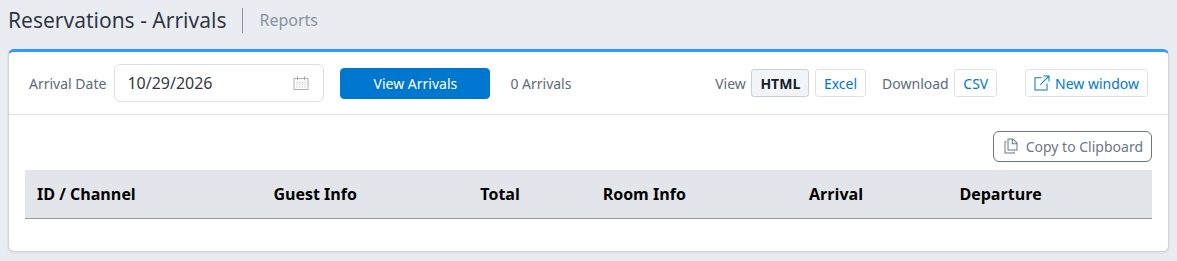
Actual empty report. The blank table demonstrates the empty state, not populated booking details.
Check the selected property and day first. Then use Reservations → Search to investigate a booking you expected to see. A changed arrival date or a later cancellation can explain its absence. If it is missing from ChannelRUSH entirely, reconcile with the source channel or PMS and contact support as needed. Repeatedly loading Arrivals does not import the missing reservation.
Copy, download or open another view
Load the date with View Arrivals before using any output control. Output links refer to the loaded report; an unsent edit in the date box is not confirmation that the export uses the new day.
Copy to Clipboard
In HTML, click Copy to Clipboard, then paste into your approved destination and inspect the text before sharing it. The button briefly shows Copied!.
The copied output is a plain-text list, not a spreadsheet table. It includes the report title, selected date, arrival count and each reservation's ID, channel, available booking contact and total, arrival/departure dates and room information. For an empty list, it includes No arrivals for this date.
The copied total does not include the currency code, and the copy does not identify the property. Add that context yourself from the report and reservation details. If nothing pastes, check browser clipboard permissions or use CSV instead; a button acknowledgement alone is not a check of the pasted content.
Download CSV
Click CSV under Download. This downloads the loaded arrival list without first switching to Excel. The file is named for the property and Reservations; rename it to include the arrival date if you need to retain several reports.
If there are no matching arrivals, the download is an empty file with no header row. Check 0 Arrivals on the report before treating that file as a failed export.
Excel view and Save As
- Click Excel beside View. This opens a read-only spreadsheet in the current report tab; it does not immediately download an Excel file.
- Open the spreadsheet's File → Save As menu.
- Choose a format: Microsoft Excel (.xlsx), Microsoft Excel 97-2003 (.xls), Comma-separated values (.csv) or PDF Document (.pdf).
- In Save As, check or enter the File Name, then click Save. Use a name containing the property and selected date.
- Open the downloaded file and check its contents. Saving a file does not change the reservations.
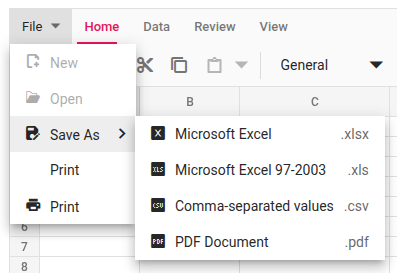
The File menu in Excel view. The spreadsheet behind it is empty in this example.
Use HTML to return to the ordinary list. An empty Excel report can show a blank worksheet without field headings. If a spreadsheet reservation link does not open the expected details, return to HTML and use the reservation ID there.
The File menu also exposes Print. Inspect the print preview and page coverage before printing; do not assume a visible worksheet area represents every result. CSV is the more direct option when you need the report's row data rather than a formatted worksheet.
Spreadsheet and CSV field reference
The spreadsheet data and direct CSV use these field names when rows are present. They are different from the HTML headings.
| Field | Contents and checks |
|---|---|
| Channel | Channel name. |
| ReservationID | The export value combines the channel reservation ID, property ID and stored reservation-version ID, separated by @. It is not necessarily the plain channel confirmation number shown in HTML. Use HTML or reservation details to obtain the channel ID alone. |
| GuestInfo | Booking contact's formatted name, or blank when unavailable. |
| Total | After-tax amount when available, otherwise before-tax, shown to two decimal places; blank when neither exists. No currency field accompanies it. Keep the currency and tax-basis limitations in mind before combining or comparing amounts. |
| RoomInfo | Room-type names and repeated-name counts. Multiple entries can occupy separate lines within one exported cell. |
| ArrivalDate | Earliest arrival in the whole reservation, formatted as a short date. |
| DepartureDate | Latest departure in the whole reservation, formatted as a short date. |
Check the date and decimal format when importing a file into another application; do not assume ISO dates or a particular day/month order. Preserve reservation identifiers as text. The export does not add a reservation-status, currency, selected-report-date or delivery-status column. Spreadsheet Save As exports the worksheet; direct CSV is generated from the report rows, so do not assume the two files retain identical formatting or hyperlinks.
New window
Click New window to open the loaded report in a separate tab or window without the main application navigation. The original report stays open. The new view retains the loaded query, including an explicitly selected date; check that date there before using it. Choose a date explicitly before opening a copy you intend to keep across midnight.
Check the result and resolve differences
A successful View Arrivals reload leaves the chosen date visible and shows either matching reservation rows or 0 Arrivals. Compare the property, day and a sample booking's details before relying on the list for front-office work. A downloaded or copied list is a snapshot; reload the report and export again when you need a later view of stored reservations.
| Symptom | Safe next action |
|---|---|
| The date changed in the box but the report still looks unchanged | Click View Arrivals and check the retained date after reload. Do this before copying, changing view or downloading. |
| You cannot open the expected property or report | Confirm the selected property and ask an Org Admin to check your property access. Do not change IDs in a shared link to work around access restrictions. |
| An expected arrival is absent | Check the property's date, latest reservation version and cancellation status in reservation search. Reconcile missing bookings with the source; this report cannot repair a feed or prove PMS delivery. |
| A row's Arrival is not the selected day | Open its details and check all room stays. Another room in the same reservation can arrive on the selected day. |
| The name, room or amount is blank or unexpected | Check the recorded reservation details. A blank value is not proof of zero charges, no guests or no rooms. |
| The file is empty | Compare with the loaded arrival count. Zero-row CSV has no headers, and zero-row Excel is a blank sheet. If HTML has rows but the same-date download does not, retain the property/date and error details for support. |
| A copied amount lacks context or a spreadsheet link fails | Check currency and the plain channel reservation ID in HTML/details. Do not treat exported internal identifiers as a new booking or resend instruction. |
If a discrepancy remains, contact support with the property, selected arrival date, source channel, action time and time zone, and exact error text. Provide a reservation reference only through an approved support channel when needed. Do not send passwords, payment details or unnecessary guest information.
Related
- Review reservation details
- Read daily occupancy, arrivals, departures and stayovers
- Create, share and schedule saved reports — a separate workflow if you need scheduled report email; Arrivals itself has no email-schedule control.