

Use Booking Engine Summary to review a property's booking setup, investigate readiness findings and check how its fees, taxes and policies affect an example stay.
This is a configuration review, not a launch certificate. A green headline, Live, or Nothing to fix does not prove that a guest can complete a booking for particular dates, that a payment succeeds, or that a confirmation email arrives. Read the individual findings and check your actual guest-facing booking path before launch.
Before you start
- Sign in and select the correct property. Confirm its name at the top of the summary. This page reviews one property, not your whole organization.
- You need access to that property. To make corrections, you also need the relevant editing permission: Booking Engine / CRS - Settings for CRS configuration, or Content for property content and photos. Ask your administrator if a linked editor is read-only or refuses a save.
- Know which hosted sites, widgets and CRS connections you intend to use. A property serving CRS connections alone does not necessarily need a hosted booking site or widget.
The summary itself has no Save, date filter or booking-submission control. Opening or reloading it recalculates the summary; it does not change rates or submit a reservation. Its links open other screens. Changes made and saved on those screens can affect guests and shared connections.
Open and review the summary
- Open the property's Admin page.
- Find CRS, Booking Engine, Content.
- Select CRS Settings.
- Select BE Settings Summary beside the property name. The summary opens in a new tab.
- Confirm the property name on Booking Engine Summary.
- Read every item beneath the headline, starting with those marked ✕.
- Follow the relevant Fix in … link to inspect the configuration that needs attention. The link navigates to an editor; it does not repair anything automatically. After inspecting or saving in an editor, use your browser's Back button or reopen BE Settings Summary to return.
- Review What's set, Where guests book, Rooms and rate plans, and What a guest pays using the reference below.
Edit settings returns to CRS Settings. Content summary opens a more detailed content review. If a finding concerns an inactive account and has no correction link, contact your administrator or ChannelRUSH support.
Understand the readiness message
- ✕ / to fix: a configuration problem identified as blocking bookings, either generally or for an affected room or language.
- ! / to review: something to check, such as incomplete content, missing photos, an unused plan or an ended promotion.
- Nothing to fix: none of the implemented configuration checks returned a finding. This is not a live availability or checkout test.
Counts refer to findings. One finding can group several missing fields. Read the affected room, language or connection named in the message rather than treating the headline as an exhaustive assessment. In particular, Guests can book, but not every room is not proof that another room is currently available.
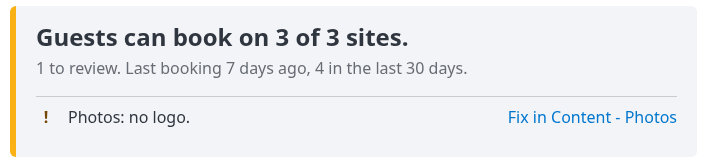
An existing demo property's review finding. Following the link opens the photo configuration; it does not upload or change a logo.
When shown, Last booking and in the last 30 days describe recorded booking-engine reservations. The window concerns reservation creation, not arrival dates. These are not counts of paid or completed stays, and historical bookings do not validate today's configuration. No bookings yet is not an error by itself.
Check the result after corrections
- Save an intended correction in its own editor, with the appropriate permission. Review that editor's confirmation or validation messages before continuing.
- Return using your browser's Back button, or reopen BE Settings Summary for the same property.
- Reload the page.
- Check the individual finding and the relevant detailed setting. Do not rely only on the headline or a lower finding count.
- Check each intended guest-facing site or widget using representative dates, occupancy and languages. Review available rooms, policies and the displayed total without submitting a real reservation merely to inspect setup.
A cleared finding confirms only that the summary's check no longer detects that configuration issue. Payment processing, email delivery, reservation delivery and a complete booking require their own controlled verification. Do not turn on live processing or create a real booking solely to clear a warning.
Field reference: What's set
Section headings link to the corresponding area of CRS Settings.
General
| Field | What to check |
|---|---|
| Property | The configured property type and whether pets are allowed. |
| Currency | The property's pricing currency. It is also used by the example stay; guest currency choices are shown under Booking profiles. |
| Time zone | The saved property time zone. Not set needs attention where policies use local deadlines. |
| Bookable | The configured advance-booking window, expressed as days ahead. It is not a count of dates with inventory. If it unexpectedly shows zero, review the setting rather than concluding future bookings are impossible. |
| Location | Saved latitude, longitude and postcode. Missing values are identified in the text. |
| Card payments | The configured gateway and any required settings the check finds missing. Passthrough means cards are collected without authorization or charging by that gateway mode; the property handles charging. A configured gateway is not evidence of a successful charge. |
| Guest emails | The configured sending route and a summary reply address. A property mail provider may be configured, or ChannelRUSH's no-reply sender may be used. The address used for an actual booking can depend on its language and delivery circumstances. This line does not confirm email delivery. |
Rooms & Rates
| Field | What to check |
|---|---|
| Room types | Enabled rooms out of all configured rooms, plus the count with an enabled rate-plan mapping. Here bookable concerns that setup, not date-specific inventory, restrictions or checkout success. |
| Rate plans | Enabled plan names. None on means no plan is enabled. |
| Booking policies | Policies referenced by rate plans or date-specific overrides. + calendar dates indicates calendar use. This is not a quote for a selected stay. |
| Add-ons | Add-ons that pass the summary's sellable/pricing checks, followed by profiles configured to offer add-ons. Offered in no booking profile needs attention if you intend to sell them. Daily-price checks inspect a limited upcoming period, not every future stay. |
| Promotions | Enabled promotions grouped as live, upcoming or ended, with coupon-code availability where applicable. A live count does not confirm that a particular booking qualifies. |
| Venues | The number of enabled venues, or None when no venues are configured. |
An add-on counted as for sale is not guaranteed to be offered for every room or date. Review its mapping, availability and assigned booking profile when the guest-facing result differs.
Booking Engine
| Field | What to check |
|---|---|
| Channel | Whether the booking-engine channel is connected and whether it is handling reservations. Connected, reservation handling off is distinct from a disconnected channel. Check this even when the headline looks ready. |
| Hosted sites | Live and test-mode configuration counts. A site is counted live here when its mapping is enabled and channel reservation handling is on. This does not test its domain, content or checkout. |
| Widget keys | Non-revoked live/test keys that are enabled and have allowed sites, plus keys classed as not usable. Also check the assigned profile and its languages; a live count alone does not validate them. |
| Booking profiles | Configured profile names. Profiles are shared by the connections assigned to them. |
| Date picker | The configured default stay length. If stated, rooms can have different dates. This is separate from the advance-booking window. |
Content
Each content profile has Complete or a clickable gap count. These checks cover selected property, plan and room text, amenities and applicable terms—not every content field. Complete does not mean photos and logos are complete; read Photos and the findings separately.
Photos reports property photos and logo presence from the shared photo-source profile. No content yet means there is no content profile for that photo summary. Use Content summary for the detailed content workflow and review every language you offer.
Field reference: Where guests book
This section appears when the property has a booking-engine channel, hosted sites or non-revoked widget keys. Not every property has every table.
Hosted sites
| Column | Meaning |
|---|---|
| Site | The hosted address. Selecting it opens the site in another tab, not its settings editor. |
| Language | The content profile associated with that site mapping. Multiple language rows can use the same address. |
| Theme | The assigned presentation theme. (retired) flags a disabled theme. |
| Shows | Website, Booking engine, or Website and booking engine. A website-only row is not evidence of an available booking flow. |
| Profile | The assigned booking profile, or None. |
| Bookings | Live or Test mode, based on the site mapping and reservation-handling configuration. Neither label is a completed booking test. |
No hosted sites is expected for some widget-only or CRS-only setups. It is a gap only if you intended to offer a hosted site.
Booking profiles
| Column | Meaning |
|---|---|
| Profile | Profile name; select it to open that profile's editor. Review its shared assignments before saving changes. |
| Languages | Languages/content profiles configured on the profile. Hosted sites also have their own language mapping above. |
| Currencies | Default currency and any additional choices, possibly every supported currency. |
| Online changes | Change and cancel, Change only, Cancel only, or Neither. This is a configured feature choice, not a promise that a particular existing reservation is eligible. |
| Add-ons | Offered or Not offered. Individual add-ons still need suitable setup and availability. |
| Terms | Must be accepted or Not asked at booking. |
| Used by | Counts of assigned sites, non-revoked widget keys and, when present, CRS partners. Assigned does not mean currently live or usable. |
Widget keys
When present, the table shows Name, masked Key, Type, Status and Last used.
- Type distinguishes Live from Test.
- Status is Off, No allowed sites, or On for N sites. The last state confirms configured allowed origins, not that a widget is installed or working on all of them.
- Last used is a recorded date or Never, not proof of a completed reservation.
- Revoked keys are excluded. The masked value is for identification; it is not the full key to embed.
The summary does not issue, enable or revoke keys. Use the appropriate widget settings workflow for changes, and never send full keys to support in a screenshot.
Field reference: Rooms and rate plans
Only enabled room types appear as rows, and only enabled plans have plan columns. A Switched off: note lists disabled rooms or plans where applicable.
| Column or mark | Meaning |
|---|---|
| Room type | Configured room name. Can't be booked flags a missing enabled plan mapping. |
| Max guests | Configured maximum occupancy. A dash means unset, not zero guests. |
| Rate-plan columns: ✓ | The room is mapped to the enabled plan. The accessible label is Sold. It does not establish a rate or availability on guest dates. |
| Rate-plan columns: – | No mapping to that plan; the accessible label is Not sold. |
| Photos | Mapped room-photo count from the photo-source profile. Zero means no counted room photos. |
| Language columns: ✓ | No checked text gaps for that room/profile. |
| Language columns: ! N | A gap count. Point to the mark to inspect the missing-field description. |
| Edit | Opens the selected room's editor. |
On a narrow screen, scroll the table horizontally to see the remaining languages and Edit links. No room type is switched on means there are no enabled room rows; it does not mean the table is still loading.
Field reference: What a guest pays
Policies
The policy text summarizes deposit and cancellation terms. Where several policies are used, read the policy and associated rate-plan names. Calendar overrides and booking conditions can change which policy applies to an actual stay.
Do not treat an online-cancellation sentence as a guarantee that a particular reservation can be cancelled or refunded. Check that reservation's applicable policy and self-service eligibility before promising a guest an outcome.
Fees
The table includes both enabled and disabled fees.
| Column | Meaning |
|---|---|
| Fee | Name; select it to open the fee editor. |
| Amount | Flat currency amount or percentage. |
| Charged | The basis: per booking, per room, per room per night, per guest, or per guest per night. |
| Rooms | All rooms, named selected rooms, or None chosen. |
| Own tax | A fee-specific tax percentage that replaces ordinary percentage tax on that fee. A dash means no override; 0% explicitly applies zero own tax. |
| Status | On or Off. Off fees remain listed but do not contribute to the example. |
No fees means no fee rows are configured. For a listed fee, its status and room scope determine whether it applies; being present in the table is not enough. Percentage fees use applicable room-rate amounts, not the add-on total. Per-guest charging bases require flat amounts rather than percentage fees.
Taxes
| Column | Meaning |
|---|---|
| Tax | Name; select it to open the tax editor. |
| Amount | Flat amount or percentage. |
| Applies to | For percentage taxes: room rates, add-ons and/or fees. Nothing means none of those categories is selected. A flat tax is described as applying to each booking. |
| Rooms | All rooms, selected room names, or None chosen. |
| Status | Off, On, or On, included in the price. Included taxes are shown within the price, not added again. |
The paragraph beneath the table groups enabled taxes as added on top or already included. It also flags chosen-room scope. Use individual rows when comparing a specific room; the combined percentage is not automatically applicable to every booking component.
Example stay
This is an illustration, not a live quote or reservation. It uses two adults, two nights at 100 per night and a generic add-on at 25, all in the property's currency. The generic add-on can appear even when you do not sell an add-on at that price.
The example uses a room with an enabled plan mapping when one exists, its first configured plan mapping, and an arrival 30 days ahead. It does not search real rates or availability. Its policy calculation can therefore differ from another plan or arrival date. A displayed example also does not prove the selected plan is currently sold to guests.
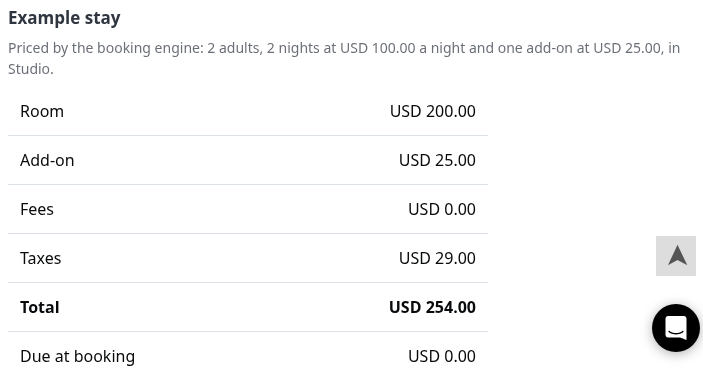
The demo property's illustrative calculation. These are not recommended prices or tax settings for your property.
| Row | What it establishes |
|---|---|
| Room | The fixed illustrative room amount. |
| Add-on | The fixed generic add-on amount. |
| Fees | Applicable enabled fees for the illustrative stay and selected room. |
| Taxes | Added taxes for that example. Included taxes are not added again, so this can be zero even when included-tax rows exist. |
| Total | The resulting illustrative total after applicable charges. |
| Due at booking | The policy-calculated amount due for the example. This is not an authorized or collected payment. |
Use the example to spot unexpected charge or policy behavior, then verify your intended room, plan, dates and guest total in the actual booking flow. Do not change taxes or policies merely to make the example match a different stay.
Common problems
| Symptom | Likely explanation and safe next step | When to escalate |
|---|---|---|
| The booking engine isn't set up for this property yet. | No CRS settings were found. Confirm the property, then use Open settings to begin its setup. Opening settings can initialize the property's CRS setup. Return to the summary afterward. | The property should already be configured, or you cannot access setup. |
| The headline looks ready but a room cannot be booked | The headline is not a date/occupancy search. Read every finding, the room's enabled plan mappings, the Channel line and the actual guest-facing result. | Configuration appears correct but the intended room, dates or language still fail. |
| A site is Live, but its page or checkout does not work | Live describes configuration flags. Check Shows, Profile, language and the intended address; perform a normal guest search without submitting a reservation. | The address fails or the expected offer remains missing. |
| A widget is counted live but does not work | Enabled status and allowed sites do not establish a valid profile, correct embedding or reservation handling. Check those separately in the widget/profile settings. | Those checks do not explain the failure. Do not share the full key. |
| Content is Complete, but a photo/logo warning remains | Text-gap and photo checks are separate. Use Fix in Content - Photos or Content summary for the affected item. | The correct mapped asset remains absent after reloading. |
| A saved correction is not reflected | The summary is a loaded snapshot. Confirm the editor accepted the save, return to the same property and reload. | The accepted saved value and refreshed summary disagree. Avoid repeated unrelated edits. |
| A correction link is visible but saving is unavailable | Viewing the summary does not grant editing permission. Ask your administrator to check the relevant permission. | The required permission is present but the editor still refuses the action. |
| Example tax, fee or deposit differs from your expectation | Check enabled status, room scope, included versus added tax, own-tax overrides and the selected policy/date assumptions. | The example remains inconsistent with the applicable saved settings. |
| The summary fails to load | Stop the review and record the property, page, error text and action time with time zone. Do not change payment settings or retry a charge to test this page. | Contact support with that context. |
For support, include the property, relevant room/plan or site, affected dates and language, expected result, observed message and action time/time zone. Do not include passwords, gateway credentials, full widget keys, card details or guest personal information.