

Use Quick Update to apply one set of rate, availability or restriction changes to selected dates and weekdays for a property's rooms, rate plans and channels.
Before you start
- Select the correct property in the property selector, then open Updates → Quick. The heading is Quick Update.
- You need property access and permission for the items you change: rates, availability (including stop sell), or restrictions. Fields also depend on the property's enabled features, channel support and mappings. Seeing a field does not mean every selected channel supports it.
- Check which room types and rate plans are linked. A room-specific change can populate dependent rooms or plans; a rate-plan change can populate its dependent plans.
- If a PMS supplies inventory, check your property's PMS override policy. Manual updates may create overrides that prevent later PMS values from replacing those items. Where overrides are disabled, later PMS updates can replace your manual values. Channel selection also matters: all-channel changes and selected-channel changes can affect different stored inventory and override scopes.
This is a change-entry form, not a view of your current inventory. Its inventory fields start blank. Editing a field or using a heading shortcut prepares the form; Send Updates submits it. Do not use zero to mean “leave unchanged.”
1. Choose dates and weekdays
- Under Date Ranges, choose a Start date and End date. Both dates are included. Use dates on or after the property's current date, with the end on or after the start.
- Under Days, leave selected only the weekdays you want to update. All seven start selected. The range must contain at least one of the selected weekdays.
- To apply the same changes to another period, select Add Date Range and enter its dates and weekdays. You can use up to ten ranges. Remove an extra range with [ X ].
- If you type dates, move out of the field and check that both dates remain visible before continuing.
For example, to change Friday and Saturday nights throughout a month, choose that month's start and end dates and leave only Fri and Sat selected. All the inventory values entered below apply to every selected range; use separate submissions when different periods need different values.

2. Choose the right level of change
Use the narrowest fields that match your task. Room columns align with the rate-plan columns below them.
| Where you enter a value | What it prepares |
|---|---|
| Global Room Type | Populates room-type fields across the property and their applicable dependent rate-plan fields. Channels with property-level support can also receive a property-level update. This is a broad update, not a room-selection filter. |
| A named room under Room Types | Prepares that room's update. Configured room links and rate-plan relationships can populate other fields. Room-level requests can also apply to the room's enabled, mapped channel rate plans. |
| Global - [rate plan] under Rate Plans | Populates that rate plan across rooms. Room calculations and dependent-plan relationships can change the resulting values. |
| A rate plan in a particular room's column | Prepares that room/rate-plan combination. Configured dependent plans may also be populated. |
| Unmapped, if shown | Represents channel rate plans without a matching property rate-plan mapping; it is not a new plan or an instruction to repair mapping. Confirm the intended channel products before using it. |
To change only one room/rate-plan combination, start with the broader global and room fields blank. Enter the intended values in that combination's rate-plan fields, then review any populated dependent fields. Clearing a rate-plan field alone does not reliably exclude that plan while a broader room update remains filled: the room update can still generate requests for channel rate plans. Do not use a broad update to work around missing permissions or unsupported fields.
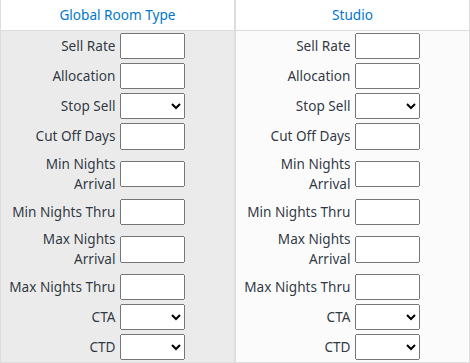
Focused example of the Room Types section. Your room names and available fields may differ.
3. Enter and review the changes
- Enter only the values you want to change at the level chosen above. The field reference below explains each field.
- Move out of the edited field and allow automatic population to finish. Rates can be recalculated using configured room/rate-plan relationships and rounding; do not assume every populated rate will equal your original entry.
- Review the room fields and the rate-plan fields below them, including linked rooms and dependent plans. Check the whole form, not only the field you edited.
- Review every date range and weekday selection again.
Blank, zero and No are different
- Blank: no explicit change from that field. It does not delete the stored value, remove a restriction, or cancel a broader update elsewhere in the form.
- 0: an explicit numeric value, subject to the field's and channel's rules. Allocation = 0 also populates Stop Sell = Yes. A zero rate is not a valid way to close sales.
- No: an explicit request to remove that particular boolean restriction. For Stop Sell, it requests reopening; for CTA or CTD, it removes the arrival or departure closure. Other availability and restrictions still apply.
Review Allocation and Stop Sell together. When the property's automatic stop-sell setting is enabled, entering allocation above zero can populate Stop Sell = No. This may reopen sales for affected products, including populated dependent plans. Do not assume changing allocation leaves stop sell untouched.
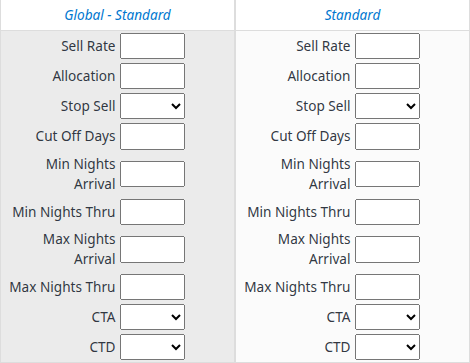
In this example, the Standard column on the right belongs to the first room column above. Use the column alignment to identify the room before editing.
What clicking a blue heading does
The blue room and rate-plan headings are populate/clear controls, not navigation links. They act on the unsent form; they do not fetch your current inventory or undo a submitted update. 0 and No count as filled values for these shortcuts.
| Heading | Behavior |
|---|---|
| Global Room Type | Clears the global room fields, every room's fields, global rate-plan fields and room-specific rate-plan fields. Dates, weekdays and channel selection remain. |
| A room name under Room Types | If any of that room's own fields is filled, clears those fields and all its rate-plan fields. If the room fields are blank and global values are available, populates the room and its plans from the global room/global rate-plan values. If neither global source has values, clears the room and its plans. |
| Global - [rate plan] | If any room-specific field for that plan is filled, clears the global fields and every room-specific field for that plan. If all the room-specific fields are blank, uses the entered room-type values to populate that plan across rooms, with configured rate calculations. It does nothing when there are no room-type values to copy. |
| A rate-plan name in a room's column | If any field in that room/plan block is filled, clears the block. If the block is blank, populates it from that room's fields and the matching global rate-plan fields where available. Matching global rate-plan values take precedence; rate calculations still apply. |
After any shortcut, review the resulting fields. To abandon the entire unsent form, use Cancel and confirm any unsaved-change prompt. If Toggle Row Wrap is offered, it changes how the columns fit on screen, not which products receive an update.
4. Select channels and send
- When Channels is shown, review the selected destinations. Eligible channels start selected. Use the individual checkboxes or All Channels to select or clear the enabled choices; disabled channels cannot be selected.
- Confirm the intended channels support the fields and dates you entered. Channels assigned to inventory groups are not offered for direct selection here; use Detail or Calendar for their direct updates.
- Wait until automatic population has finished. Do not submit while the page says Please wait, data on the screen is still populating....
- Select Send Updates once.
- Read every success, warning and error message before deciding what to do next.
Some users have a standard-only update mode with no channel checkboxes. The form can still submit updates through the property's configured distribution setup; absence of checkboxes does not make it read-only. Confirm the destination setup with your administrator if you are unsure.
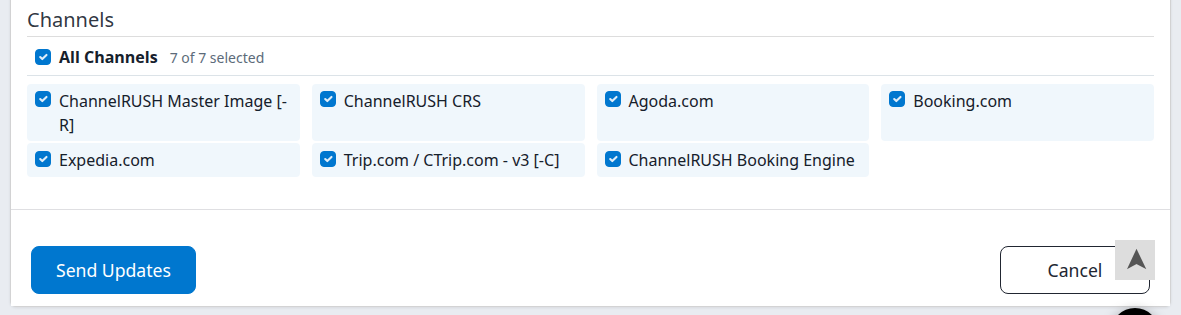
Cancel resets the unsent form. It does not cancel queued work, remove PMS overrides or reverse updates already submitted.
5. Check what was saved and processed
Your updates have saved and are now processing. means requests were saved for processing. It does not establish that every selected channel accepted every requested change. A large date selection may appear as several requests.
- Open Updates → Status for the same property. The heading is Update Status.
- Set Status to All so a filter does not hide successful, pending or processing requests.
- Choose the relevant Channel. Leave Room Type and Rate Plan at All initially if the update included room-level or property-level changes; narrow them when checking a specific combination.
- Open More Filters. To find Quick submissions, choose Source → UI Quick. If you enter dates, choose Start/End Date to search the affected inventory period, or Creation Timestamp to search when requests were created. Processing Timestamp concerns processing, not the stay dates. Move out of typed date fields and check the retained values.
- Select Search. Changing a dropdown alone does not load the filtered results.
- Inspect the matching channel/product, affected dates, update values, Status, Attempts, Created and Last Run. Use the paging arrows if needed. Confirm that the request belongs to your action, not an older update for the same dates.
- Check the affected inventory and, when necessary, the destination channel before correcting or repeating the update.
Pending and Processing are not finished outcomes. Successful is the recorded processing result for that request, not proof that unrelated requests succeeded or that no later update changed the channel. For Unsuccessful, read the request's error information and resolve the cause before considering a retry.
If nothing matches, use Clear Search Filter, set Status → All again, and select Search with broader criteria. Leave data-type filters unselected when investigating broadly; restrictive filters can hide relevant history. Include Archived under More Filters if the request may have been archived. Do not use Retry or Go merely to refresh the list.
An error does not necessarily mean nothing was saved. Valid channel requests can be saved while others fail. Local inventory and PMS overrides are handled separately and can be changed even when no channel request was saved. A “no updates saved” message or an empty Status search is not proof that all stored values stayed unchanged. Inspect Status and inventory before resubmitting; if you cannot establish the saved scope, ask support to confirm it.
Field reference
All update fields are optional individually, but you need an actual change, a valid date range and, when the channel list is shown, at least one enabled selected channel. The form starts with blank inventory values, not default rates or restrictions.
Enter numbers in the format used by your account. Rates accept decimal amounts; allocation and day/night restrictions use whole numbers. Do not enter currency symbols, percentages or formulas. Allowed limits and supported combinations vary by channel; there is no single Quick Update range that guarantees acceptance everywhere.
| Field | What it changes | Example and important checks |
|---|---|---|
| Sell Rate | The rate for the selected scope and dates. Room/plan calculations can populate dependent rates; channel settings can further affect the outgoing rate. | 150.00 is a rate amount, not a percentage increase. Rates must be above zero and satisfy the room's configured minimum allowed rate and channel rules. Leave blank to omit the explicit rate change. |
| Occupancy-specific rate fields, when enabled | The rate for the occupancy named by the field. These appear only for supported, configured room/plan combinations; global columns do not provide a separate input for every occupancy. | A two-person occupancy rate applies to that named occupancy. Review values after changing Sell Rate because configured calculations can populate them. Do not assume an occupancy edit populates other occupancies or plans. If a field does not respond as expected, stop and ask support rather than submitting uncertain values. |
| Allocation | The number of units offered for the selected scope/dates. | 5 requests five units, not five additional units. 0 requests zero allocation and also populates Stop Sell = Yes. A positive value can populate Stop Sell = No when configured. Review both fields and dependent products. |
| Stop Sell | Whether sales are closed for the affected product and dates. | Yes closes sales; No removes this closure. Reopening does not override zero allocation or other booking restrictions. Blank omits the explicit stop-sell change. |
| Cut Off Days | The advance-booking cutoff, measured in days, for supported products. | 2 sets a two-day advance-booking requirement. Use the destination's supported cutoff values. Blank leaves this field out; do not assume zero has the same reset behavior on every channel. |
| Min Nights Arrival | Minimum stay length for a booking arriving on an affected date. | 3 requires at least three nights for an arrival on that date. It is different from a minimum applying to a stay that passes through the date. |
| Min Nights Thru | Minimum stay length for a booking whose stay includes an affected night. | 3 requires a stay of at least three nights when it includes that night, even if arrival is earlier. Channel support is required. |
| Max Nights Arrival | Maximum stay length for a booking arriving on an affected date. | 7 limits arrivals on that date to seven nights. Check it against the applicable minimum-stay restrictions. |
| Max Nights Thru | Maximum stay length for a booking whose stay includes an affected night. | 7 limits a stay including that night to seven nights. Do not treat this as an arrival-only maximum. |
| CTA | Closed to arrival. | Yes prevents arrivals on the affected dates; No removes the arrival closure. It is not a stop sell for every stay passing through those dates. |
| CTD | Closed to departure. | Yes prevents departures on the affected dates; No removes the departure closure. It is separate from CTA and Stop Sell. |
For numeric restrictions, blank means omit, not “remove the existing restriction.” To remove or relax one, use the value supported by the destination channel. Do not assume zero universally means unlimited or unrestricted. Check the applicable minimum/maximum together and verify the resulting request.
Common problems and safe recovery
| Symptom | What to check | Safe next action |
|---|---|---|
| Date or weekday error | Both dates are required; dates must not be in the property's past; at least one selected weekday must occur within the range. | Correct the range/weekday selection. Check all added ranges, not only the first. |
| No updates have been saved since no channels were selected, please try again. | No channel was selected in a mode that requires the channel list. | Select the intended enabled destinations and review the form before submitting. |
| A rate is rejected | Zero/negative rate, a room minimum-rate rule or a channel-specific rule may apply. | Read the channel/product error, correct the intended value, and check for partially saved requests before repeating anything. |
| A channel is disabled or a field is missing | Permissions, property feature settings, inventory-send enablement, setup or mapping may prevent that update. Inventory-group channels are omitted from Quick's direct-selection list. | Ask your administrator to check the relevant setup. Do not broaden the update to bypass the restriction. |
| Only part of the requested future period is processed | Channels have different future-date limits and may exclude dates beyond their limit. | Read the warning and inspect the actual request dates. Do not assume the entire range was accepted. |
| Unexpected values appear in other rooms/plans | Global entry, room links, dependent plans, automatic rate calculations or allocation/stop-sell coupling can populate fields. | Before sending, correct the scope and review the whole form. If you cannot explain the population, cancel and ask your administrator or support. |
| Population never finishes, a field does not react, or the page errors | The prepared form may be incomplete. | Do not select Send Updates. Record the affected field and error; use Cancel if you are discarding unsent work. If submission may already have occurred, check Status and inventory first. |
| Success and error messages appear together, or the submission result is unclear | Updates are not one all-or-nothing transaction. Local values/overrides and channel requests can have different outcomes. | Do not resend the whole form blindly. Check Status, affected inventory and PMS overrides; contact support if the saved scope remains uncertain. |
When contacting support, include the property, channel, room/rate plan, affected dates, action time and time zone, any request ID, and the exact error text. Do not send passwords, guest details or payment information.