

Create a named, language-specific profile for your organization's website content, then confirm that it appears in the organization's Content tab.
An organization content profile holds shared brand information, pages and other content for an organization website. It is separate from an individual property's content profile. Creating the profile does not translate your text or, by itself, make a new language available on a website.
Before you start
- Sign in to the organization whose content you intend to manage. Select a property belonging to that organization, then check the organization name and ID on CRS Org Settings. Selecting a property alone is not a way to change the organization this form creates content for.
- You need permission to edit Content to create a profile and maintain its content. Offering it through an organization booking profile is a separate CRS Settings permission.
- Check the existing profiles first. If the intended profile already exists, open it instead of creating another. Use a distinctive name so you can recognize it later.
- Decide which language and regional variant the content will use, for example English (United States) or Spanish (Mexico). Have the corresponding text ready to add after creation.
Open the organization creation form
- Open Admin → Home.
- Select Booking Engine Organization Settings. The destination is CRS Org Settings.
- Confirm the organization in the breadcrumb, then open Content.
- Review the existing profile tabs, if any.
- Select Add New Content Profile.
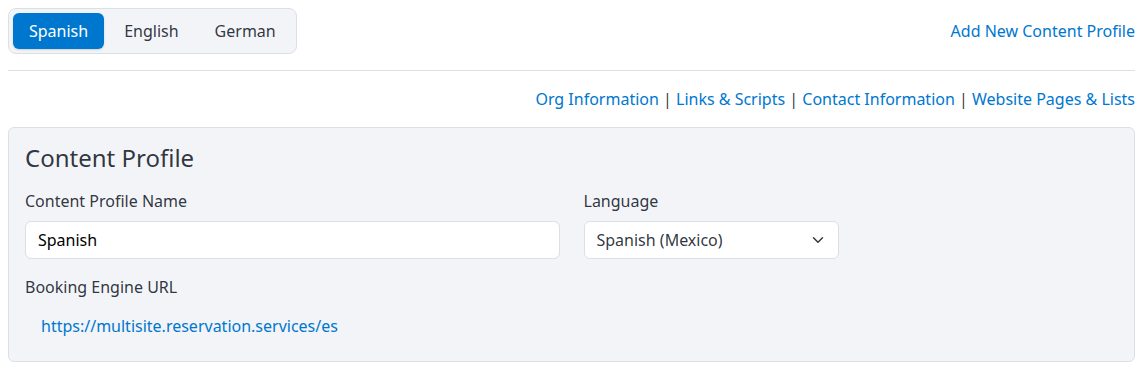
The tabs identify existing profiles. This example is an existing Spanish profile, not a newly created record.
The next page is titled New Content Profile, with a New Org Content Profile form. Do not substitute the property's Settings - Content screen: that creates or edits content in a different scope.
If Booking Engine Organization Settings is missing, ask your administrator to confirm the organization's multi-property website/content setup and your access before proceeding.
Create the profile
- Enter a recognizable Content Profile Name, such as
Brand website — Spanish. - Choose the intended Language, including its regional variant. The initial Select ... choice is not a language.
- Check both fields, then select Save once.
- After the save returns you to CRS Org Settings → Content, find the profile tab with your chosen name.
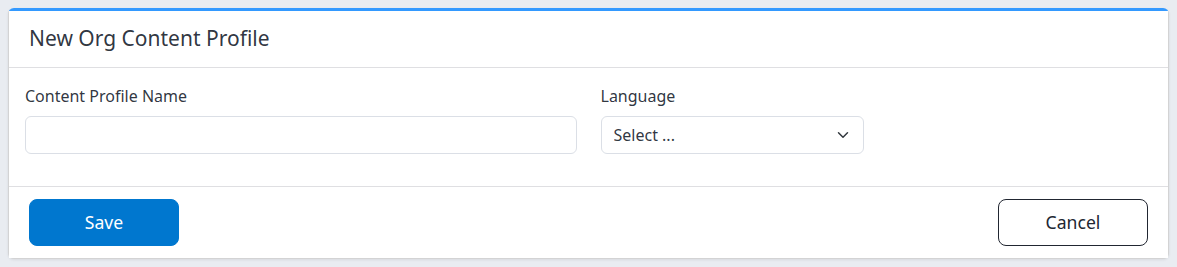
The creation form has Save and Cancel. It does not have Save & Refresh. Choosing Cancel before saving returns to the organization's Content tab without creating this profile. If a leave-page warning appears after you have edited fields, discard them only when you intend to lose those unsaved changes.
Save creates a new profile; it does not replace an existing profile with the same name. If a save times out or the result is unclear, check the profile list before submitting again.
Check the result and add content
- In the organization's Content tab, select the profile by name. Do not assume the newly created profile is the active tab: another existing profile may be shown first.
- Under Content Profile, check Content Profile Name and Language against your intended values.
- Review Org Information. The new profile starts with the organization's name; add and check the customer-facing information and text you want this language profile to contain.
- Use the profile's Links & Scripts, Contact Information and Website Pages & Lists sections as needed. Add organization photos through Content - Photos, selecting the corresponding profile there.
- Save any changes made on CRS Org Settings, then reopen the same profile and check that the intended values remain.
The parent settings page has different save controls:
| Control on CRS Org Settings | Result |
|---|---|
| Save | Saves the editable parts of the settings form that your permissions allow, then returns to Admin. |
| Arrow beside Save → Save & Refresh | Saves, then reloads CRS Org Settings. This is a real save, not a preview. Reopen Content and your profile if needed. |
| Cancel | Returns to Admin without submitting your current form edits. It does not undo a profile you already created or earlier saves. |
The parent page is a shared settings form, not a separate Save button for each content field. Check other pending edits before saving. A general save message does not replace reopening the affected profile and checking its values, especially if a warning or error appeared.
A profile tab with the retained name and language confirms that the profile is stored in ChannelRUSH. It does not confirm that a website offers that language, that all text has been completed, or that any channel has accepted content.
Make the content available to an organization website
Creating content and assigning it to a website are separate tasks. Coordinate this next step with the person responsible for your organization websites; a booking profile can be shared by more than one website.
- On CRS Org Settings, open Websites.
- Under Booking Profiles, select Edit for the profile used by the intended website, often Main.
- In Languages, select Offered for the new content profile when its content is ready. Keep the other languages the website still needs.
- Select only one content profile per language. Regional variants such as English (United States) and English (United Kingdom) are still the same website language for this rule; they cannot both be offered by one booking profile.
- Check Used By to identify the websites affected, then select Save when you are ready to apply the assignment. Reopen the booking profile and confirm the selection remains.
- Check the intended website's Booking Profile and Default Language in its website settings. Its default is selected from the languages offered by that booking profile.
- Open the intended public website and check the relevant language and content. Check the actual website, not only the profile list or a save message.
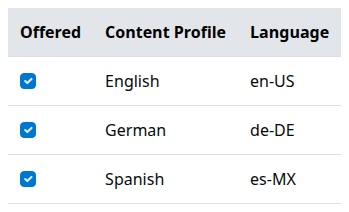
These existing selections illustrate the separate website-language assignment. Creating a content profile does not check this box for you.
A website uses its booking profile to choose which content profile serves each language. Its theme determines how that content is displayed. Saving an unused content profile is not a publication action, while editing content already used by a website can change what guests see. Review the website and language assignments before changing live content.
Creation field reference
| Field | What to enter and what it means |
|---|---|
| Content Profile Name | A recognizable label for this profile in the organization Content tabs and booking-profile language list. It starts blank. Enter an explicit, nonblank name rather than relying on an automatic name. This is separate from Org Name, which you review in Org Information after creation. |
| Language | The language and regional variant associated with this content, chosen from the dropdown. It starts at Select .... Choose an actual language; this choice does not translate text or change your application's interface language. |
The saved profile must have a nonblank name and a language. The creation page does not provide content-copying, photo-upload, website-assignment or publishing controls. Add those details or assignments through the relevant organization settings after creating the profile.
Common problems
The fields or Save control are disabled
Ask your organization administrator to check your Content edit permission. Being able to view a form does not mean you can save it. If the application identifies your sign-in as a demonstration account and refuses changes, use your authorized working account; do not attempt to bypass the restriction.
The form reports that saving was unsuccessful
Check that Content Profile Name contains meaningful text and Language is an actual selection, then review any message shown. If a validation message is clear, correct the affected field. If the error is generic or the response was interrupted, check the organization's existing profiles before trying again. Contact support if the error repeats or you cannot establish whether a profile was created.
You cannot find the new profile
Check the organization name and ID, reopen Content, and inspect all profile-name tabs. A different profile may be active. Reopen the creation form only after confirming the intended record is absent; another submission can create another profile.
The profile exists, but the website does not offer the language
Check the website's assigned booking profile, the Offered selections in that profile and the website's Default Language. Complete the content before assigning it. If those settings are correct but the public result is still wrong, ask support to investigate rather than repeatedly creating profiles.
Two profiles cannot be offered together
An organization booking profile accepts one content profile per website language. Choose which profile should serve that language; adding regional variants does not create two separate language choices in the same booking profile. If you are unsure which existing profile a website needs, check Used By and coordinate with your website administrator before changing the selection.
For support, provide the organization name and ID, intended profile name and language, the action time and time zone, and the visible error. Include the website URL for display issues. Do not send passwords or private guest information.