

Create or update a booking policy to control what guests owe at booking, what cancellation costs and which stays can use those terms.
Before you start
- Select the correct property. You need Booking Engine / CRS - Settings permission to save changes. If the form is disabled or saving is refused, ask your organization administrator to check your access.
- Decide whether you are changing an existing shared policy or creating a separate policy for selected rate plans or dates. Editing a policy changes the terms used by future bookings wherever that policy applies.
- Check the property's time zone before choosing a cancellation deadline with a time of day. The deadline uses the hotel's local time, not your computer's clock.
- These settings define amounts due and cancellation terms. Saving this form does not take a payment, cancel a booking, issue a refund or confirm that a partner has updated its display.
- If support configured multiple cancellation-fee steps or deposit rules outside this form, ask support before saving them here. Any save here, including a name-only or content-only change, reduces a multi-step cancellation schedule to the first displayed fee step; selecting the earlier refund mode removes the schedule. Only the first deposit rule is edited or removed; additional rules remain.
Changing a field updates the policy preview; it does not save the policy. Use Save or Save & Refresh to submit your changes. The preview is a summary, not confirmation that the policy has been saved or that every field is valid.
Open the booking policy
- Select the intended property in the property selector.
- Open Admin, then Settings - CRS.
- Open Rooms & Rates and find Booking Policies.
- Click an existing policy's name to edit it, or Add New in that section to create one.
Check the policy heading and Booking Policy Name before editing. A new policy opens as New Booking Policy. Do not use an old bookmarked policy link after changing properties; reopen it from that property's list.
Set when money is due
- Enter a recognizable Booking Policy Name. This is required.
- Enter Due at booking (%). Use a value from 0 to 100: 100 means the full amount is due at booking; 0 means nothing is due at booking. This is the usual deposit percentage unless the longer-stay rule below matches.
- Choose Card required on partner sites. Yes tells partners booking through the CRS API that a card is required. No does not remove the card requirement from your own booking engine, which always asks for a card.
- If needed, select A different amount due for longer stays booked well ahead and enter its three fields.
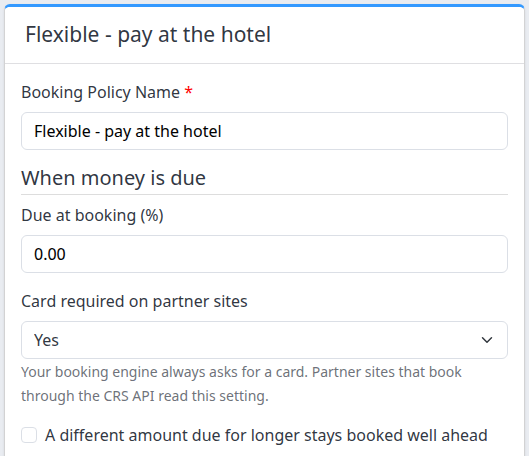
The longer-stay rule applies only when both thresholds are exceeded:
- Stays of more than (nights): the stay must be longer than this number of nights.
- booked more than (days before arrival): the booking must be made more than this many calendar days before arrival, measured using the hotel's date.
- pay at booking (%): the replacement percentage due when both conditions match.
For example, thresholds of 3 nights and 15 days mean a stay of more than 3 nights booked more than 15 days ahead uses the alternative percentage. A stay exactly at either threshold uses the usual percentage. The alternative replaces the usual percentage; it is not added to it. The rest is paid at the property.
The form initially offers 3 nights, 15 days and 50% when no rule is configured, but the checkbox starts off. Review all three values before enabling it. Unchecking the box removes the rule edited here when you save. If the policy has additional rules configured by support, unchecking this box does not remove those other rules.
Choose what cancelling costs
Choose the appropriate Cancellation option. Switching modes changes which fields are shown and, when saved, replaces the previous cancellation arrangement. Check the selected mode and its values before saving.
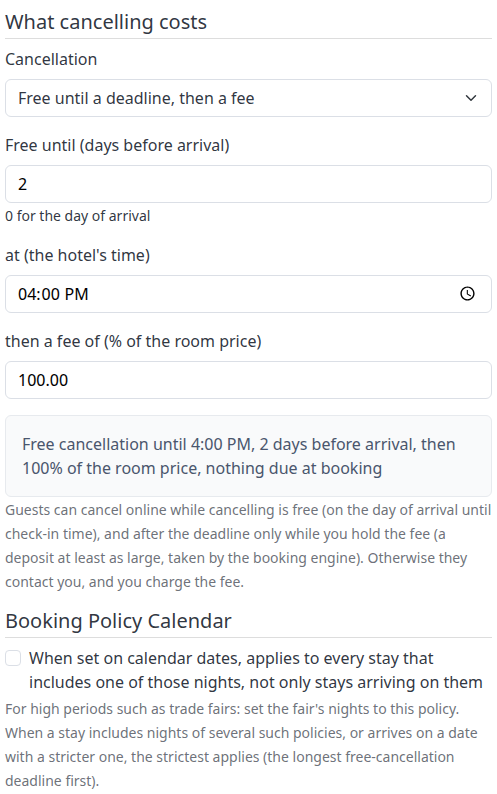
Free until a deadline, then a fee
- Select Free until a deadline, then a fee.
- Set Free until (days before arrival). Use 0 for the day of arrival, or a whole number up to 730.
- Set at (the hotel's time) to the local time when free cancellation ends.
- Set then a fee of (% of the room price) to a percentage greater than 0 and no more than 100.
The fee is a percentage of the room price, not a percentage of the deposit already paid. After the free-cancellation deadline, that fee applies. The form's initial offered values are 7 days, 18:00 and 90%; they are starting values, not a recommendation for your property.
Do not enter 0 days and 00:00 together. The form rejects that combination; use the intended previous-day deadline or a later time on arrival day.
A fee from booking (non-refundable)
- Select A fee from booking (non-refundable).
- Enter then a fee of (% of the room price).
The fee applies from booking. It must be greater than 0 and no more than 100. Selecting this mode does not automatically set a 100% fee or a 100% deposit. Review the fee and Due at booking (%) separately.
Refund % until a cut-off (earlier setting)
Use this option to maintain the earlier cancellation arrangement rather than a cancellation-fee schedule. New policies currently open in this mode.
- Cancellation Allowed: choose Yes to allow cancellation subject to the applicable online restrictions, or No to prevent online cancellation under these terms.
- Cancellation Cut Off Hours: an optional whole number of hours before arrival-day midnight, not before check-in time. Leaving it blank removes this additional policy cutoff; it does not remove the booking engine's separate online deadline. A value of 0 is also not a promise of arrival-day online cancellation.
- Amount Refundable Percentage: the percentage of the amount paid that is refundable when cancellation is permitted. Use 100 for the whole paid amount or 0 for none. This is different from a fee calculated on the room price.
In this earlier mode, online cancellation ends by the end of the day two days before arrival, or earlier if the policy cutoff requires it. The hours-based cutoff is enforced by hotel-local calendar day, not as an exact intraday deadline: with arrival on the 10th, a 36-hour cutoff permits cancellation through the end of the 8th rather than ending at noon on the 8th. The separate online deadline may end it earlier. Check the displayed policy summary rather than interpreting the hour field as hours before check-in.
What guests can do online
A fee schedule does not mean a guest can always cancel online. The booking profile must also allow guest cancellations.
For fee schedules, guests can cancel online while cancellation is free, subject to the arrival-day check-in cutoff. If no check-in time is configured, that cutoff is arrival-day midnight. Once a fee applies, online cancellation is available only before the arrival day and when the booking engine has collected enough deposit to cover the applicable fee. Otherwise, the guest must contact the property; the property handles the fee. A card on file or a percentage configured here is not proof that the deposit was collected.
For the earlier refund-and-cutoff mode, the earlier online deadline described above applies instead. With several rooms in one booking, do not assume every room has identical terms. Check the reservation's own cancellation information before promising a refund or an online cancellation window.
Choose whether calendar dates reach the whole stay
Under Booking Policy Calendar, the checkbox When set on calendar dates, applies to every stay that includes one of those nights, not only stays arriving on them changes how this policy's calendar assignments apply.
- Unchecked: the normal calendar choice is based on the arrival date.
- Checked: a calendar assignment on a later occupied night can also affect a stay that began earlier. The departure date is not an occupied night.
This can be useful for trade fairs or other high-demand nights. Selecting the checkbox does not assign any dates. Save the policy, then assign it to the relevant rate plans and dates in Booking Policy Calendar.
Normally, the arrival date's calendar policy takes precedence over the rate plan's own policy, which takes precedence over the property's default policy. The default is the first policy in the property's ordered policy list. Review that order when adding or renaming policies, especially where sort positions are equal.
When later occupied nights have whole-stay policies, the strictest of those policies and the arrival policy wins. A fee from booking ranks ahead of a free-cancellation period; otherwise an earlier free-cancellation deadline ranks ahead of a later one. Fee percentage, usual deposit percentage and policy-list order resolve further ties. Do not assume the largest deposit alone decides the policy.
Add names and notes for partner sites
Content appears for a saved policy, with a tab for each available content profile. It is not shown on the initial new-policy form.
- For a new policy, use Save & Refresh first to create it and remain in its editor.
- In Content, select a content-profile tab.
- Fill in Name for that profile.
- If needed, enter Notes for partner sites (optional).
- Repeat for the other relevant profiles, then save again.
Your booking engine generates the cancellation terms from the settings above in the guest's language. The optional notes are additional text that CRS API partners can display; they do not replace the configured deposit or cancellation rules. Keep the notes consistent with those rules. Switching tabs does not save content.
If no content-profile tabs are available, check the property's content-profile setup before assuming that translated names or notes have been saved.
Save and check the result
- Review the policy summary and any validation message. Compare the selected cancellation mode, fee or refund percentage, deposit rule and calendar checkbox with your intended terms.
- Choose a save action:
- Save submits the policy and returns to CRS Settings, at the booking-policy section.
- Open the arrow beside Save, then choose Save & Refresh to submit and reopen the policy editor.
- Cancel leaves the editor for CRS Settings without submitting your current edits. It does not undo an earlier save.
- Check the success message, then reopen the policy and confirm the saved values and content tabs. The preview before saving is not this check.
- For a new policy, choose where it will apply: assign it in the relevant CRS rate plan, use Booking Policy Calendar for date-specific terms, or confirm that it is the intended default. Creating a policy alone does not assign it to every plan or date.
- Check the terms offered for representative arrival dates, stay lengths and booking lead times through your property's booking flow. Include a stay that matches the deposit rule and one that does not, and dates with and without calendar overrides. Inspect the quote and displayed terms without completing an unwanted reservation or payment.
A successful save confirms the application's settings save, not a payment or a partner's acceptance. Saving can notify connected services that follow CRS settings. Check a partner's own display when that is part of your workflow; do not infer it from the local success message.
Changing a policy is not a way to rewrite terms already saved with a reservation. Review the reservation's own terms for existing bookings. Older bookings without saved terms can depend on the property's default policy, and later booking modifications have their own rules. Ask support before using a policy edit to resolve an existing guest's refund or payment dispute.
Field reference
| Field | Values and behavior |
|---|---|
| Booking Policy Name | Required policy name. Use a name that distinguishes the arrangement from the property's other policies. |
| Due at booking (%) | Percentage due at booking, from 0 to 100; starts at 100 for a new policy. Clearing this field changes it to 0 when you leave it. Enter the intended number explicitly. |
| Card required on partner sites | Yes or No; starts at Yes. Applies to partners using the CRS API, not removal of the booking engine's card requirement. |
| A different amount due for longer stays booked well ahead | Off for a new policy. Enables the displayed conditional deposit rule. Both thresholds must be exceeded. |
| Stays of more than (nights) | Non-negative whole number. Offered starting value: 3. Equality does not match. |
| booked more than (days before arrival) | Non-negative whole number. Offered starting value: 15. Uses hotel-local calendar dates; equality does not match. |
| pay at booking (%) | From 0 to 100; offered starting value: 50. Replaces the usual percentage when both conditions match. |
| Cancellation | One of the three modes described above. Saving a different mode changes the cancellation arrangement. |
| Free until (days before arrival) | Whole number from 0 to 730; offered starting value: 7. Used only for Free until a deadline, then a fee. |
| at (the hotel's time) | A time such as 18:00, in the property's local time. Used with the free-cancellation deadline. |
| then a fee of (% of the room price) | Greater than 0 and at most 100; offered starting value: 90. Used for either fee-schedule mode. |
| Cancellation Allowed | Yes or No; starts at Yes. Used by the earlier refund-and-cutoff mode. |
| Cancellation Cut Off Hours | Optional whole number, measured back from arrival-day midnight. Blank means no additional cutoff from this field; separate online restrictions remain. Avoid negative values. |
| Amount Refundable Percentage | From 0 to 100; starts at 100. Share of the amount paid, not the room price. Clearing the field changes it to 0 when you leave it. Used by the earlier mode. |
| When set on calendar dates… | Off for a new policy. Allows calendar assignments of this policy on occupied nights to reach stays that arrived earlier; does not create assignments. |
| Content → Name | Name for the selected content profile, marked required in the form. Complete it for the profiles you use. |
| Notes for partner sites (optional) | Optional text for CRS API partners; keep it consistent with the structured terms. It does not change cancellation calculations. |
Do not leave enabled numeric fields empty to mean “off.” Use the checkbox or mode selection where provided, and enter explicit numbers in the fields still in use.
Common problems
A numeric-field or fee validation message appears
If you see “Fill in the days, the fee and the deposit rule with numbers: a field is empty or not a number.”, complete the fields shown for the selected mode and enabled deposit rule. A cancellation fee must be greater than 0 and at most 100; deposit percentages must be between 0 and 100. Correct the value, review the preview and save once. If the same error remains, send support the property, policy name, action time/time zone and exact message.
The deadline is rejected
Check that the day count is between 0 and 730 and the time is valid. For “Set the property's time zone first…”, configure the property's time zone before using a timed deadline. Do not remove the time merely to bypass a missing time zone. For 0 days with 00:00, choose the intended previous-day deadline or another arrival-day time. Escalate if the required time zone or deadline cannot be configured.
The expected policy or deposit is not offered
Check both deposit thresholds, the selected rate plan, its arrival-date calendar override, any whole-stay policies on later nights and the property's default order. A saved but unassigned policy may not be used. If those checks do not explain the quote, give support the property, rate plan, arrival/departure dates, booking lead time and expected policy. Do not change an unrelated default as a workaround.
Guests cannot cancel online
Check the booking's own terms, its booking profile's cancellation option, the applicable deadline and whether the booking engine actually collected enough deposit to cover an active fee. Do not change a policy or collect an extra payment merely to force the online action. Handle the guest's request through the property's approved process and contact support if the displayed eligibility conflicts with the saved terms.
Saving fails, or the saved policy and content disagree
Reopen the policy from CRS Settings and inspect both the structured fields and each relevant content tab before retrying. Policy settings and content are saved in separate stages; a later error is not proof that the earlier settings were rolled back. If a new-policy save had an uncertain result, check the list before creating another policy. Report persistent differences or errors to support with the property, policy name, action time/time zone and error text. Do not send passwords, card details or unnecessary guest information.