

Build a reusable report from several sections, choose its property scope, and optionally email it on a schedule.
Before you start
- Select the correct property and organization. Saved reports belong to an organization, not to the property currently selected in the navigation.
- To change a report, you need Reservations - Actions or Channel Settings permission. You must also have access to every property the report covers. If the page says the report includes properties you cannot access, ask an Org Admin to make the change.
- Personal reports are normally visible to their owner; Org Admins can also manage them. Organization reports are available to other users in the same organization. Sharing a report does not grant application access to its properties.
- Decide who may receive the data before enabling email. Explicitly selected users and additional email addresses receive every selected property's report, even if those people cannot open those properties in the app.
Open or create a saved report
- Open Reports → Saved Reports → Manage Reports & Schedules.
- Find your report and choose Edit. If it is missing, choose All in the Show control.
- To create one, choose New Saved Report.
- Enter its Name. Choose whether to show it in the Reports navigation and whether it is shared with the organization.
- Choose Save & Continue. The report must exist before you can add sections, select properties or configure emailing.
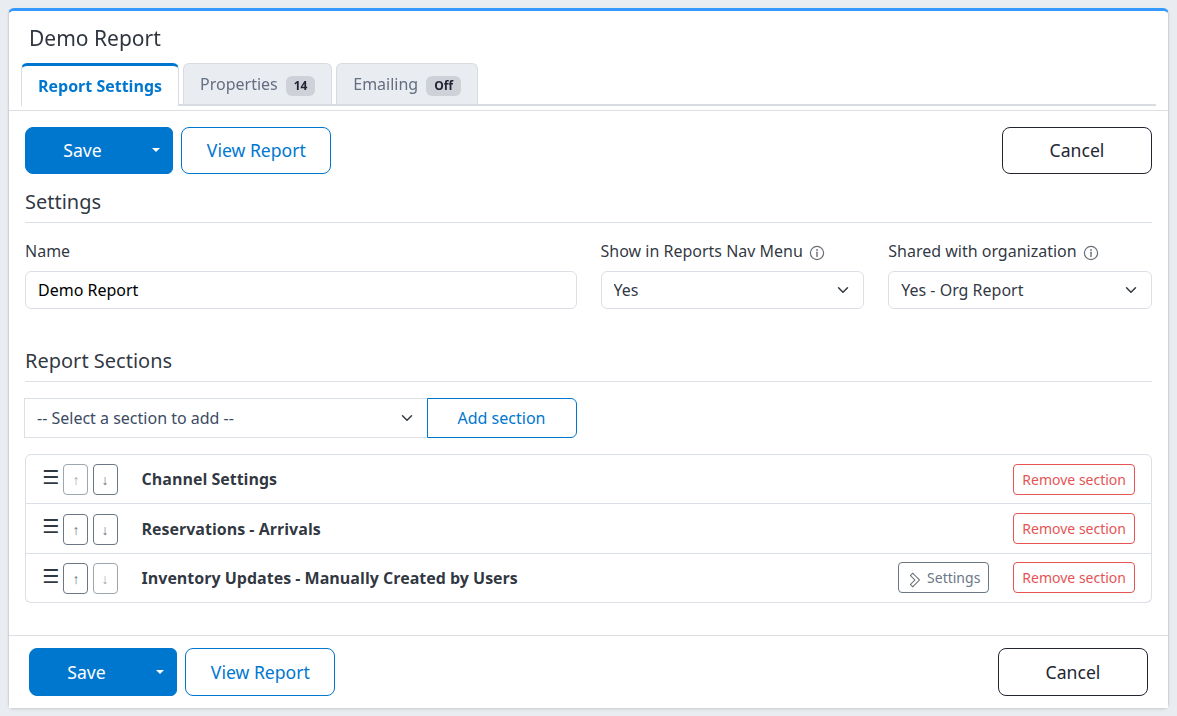
An existing report has three tabs: Report Settings, Properties and Emailing. The number beside Properties is the current selection count; Emailing shows On or Off. While editing, these badges describe your unsaved form, not confirmation of a successful save.
Understand when changes are saved
All three tabs use one Save. Adding, removing or moving a section, changing its settings, selecting properties or recipients, and adding, editing or removing schedule and email rows remain unsaved until you submit the form.
- Save saves the form and returns to Saved Reports.
- Open the arrow beside Save and choose Save & Refresh to save and reopen the editor.
- View Report opens the last saved report in another tab. It does not save or preview pending edits.
- Cancel returns to Saved Reports without submitting your current edits. If you are prompted about unsaved changes, stay on the page to keep editing or deliberately leave to discard them. Cancel does not undo an earlier successful save.
- Switching tabs, opening a section's Settings, or opening an information icon does not save.
If Save displays an error, read the message and inspect the relevant tab. Do not assume a selection that remains visible has been saved. After an uncertain connection or save result, reopen the report before repeating your edits.
Choose and arrange report sections
- On Report Settings, open Select a section to add.
- Choose a section and click Add section. It is appended to the form. A section already present is marked (added) and cannot be added twice.
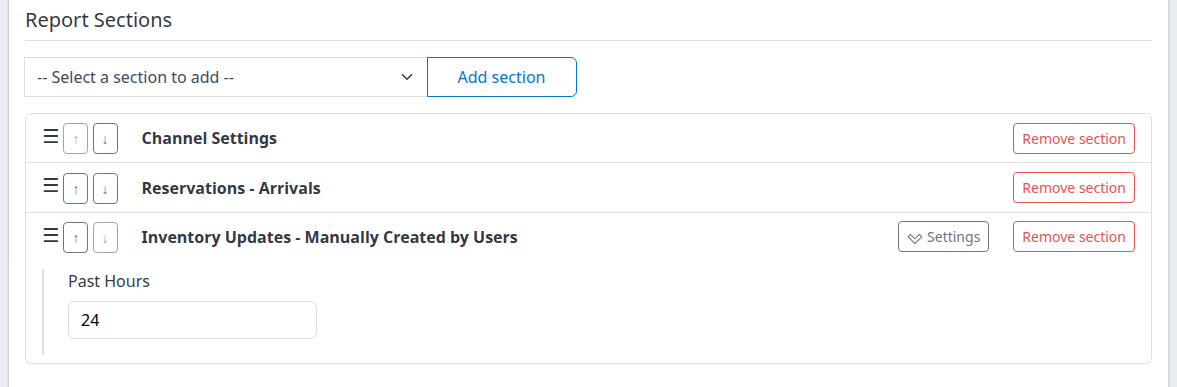
- Where a row has a Settings button, expand it and complete the fields described in the reference below. Rows without that button have no editable section criteria on this screen.
- Drag the handle at the left of a row, or use its up/down arrows, to change the order.
- Use Remove section to take a section out of the form. This is not a separate save or confirmation page. Adding the same section again before leaving restores the removed row and its unsaved settings.
- Choose Save & Refresh, then verify the sections, settings and order after reload.
After a removal has been saved, do not rely on re-adding the section to restore its old criteria. Review its settings again. If another user changed the same report while you were editing, check the reloaded section list rather than assuming your original list was still current.
What the available sections cover
| Section | Purpose and settings on this screen |
|---|---|
| Channel Settings | Current channel setup and mapping information. No section settings; not a live connection test. |
| Opportunities | Stored opportunity messages. Choose the exact message level. |
| Reservations - Occupancy | Captured reservation counts for the property's current period, not a room-occupancy percentage. No section settings. |
| Reservations - Arrivals / Reservations - Departures | Arrivals or departures for the property's current local day. No section settings. |
| Reservations | Captured reservations; the default section uses yesterday's local receipt date. No editable reservation-search criteria here. |
| Reservations - Group | Recent individual bookings meeting the room-count threshold. Set lookback and room count. |
| Reservations - Discounted | Recent bookings meeting the comparison threshold against stored channel net rates. Set lookback and percentage. |
| Reservations - PMS Delivery Failures | Recent failed PMS deliveries, with a default four-hour lookback. No section settings here; viewing the report does not resend anything. |
| Update Processing Summary | Pending/processing inventory work and recent outcome counts. No section settings. |
| Inventory Updates - Manually Created by Users | Recent user-created inventory requests. Set the lookback. A request appearing here is not proof of channel acceptance. |
| Inventory Updates - Missing Availability | Missing supported rate/allocation data. Set months, grouping, channels and room types. Missing data is not proof of deliberate stop-sell or sellout. |
| PMS ARI Last Update Timestamp | Stored inbound PMS-message time or supported monitoring evidence. No section settings or live refresh request. |
| Daily Revenue / OTB; Length of Stay; Seasonal Trends; Booking Patterns — Cross-analysis; Rate Plan Performance; Cancellation Analysis; Channel Production; Booking Source Mix | Current captured reservation production, using the stay-production fields below. These are not historical as-of snapshots. |
| Booking Pace / Pickup | Receipt-based retained-history reconstruction and movement. Uses its own date and cutoff fields. |
| Portfolio Overview / Channel Net Revenue | Property-level commercial summaries. Saved sections remain per-property even when emailed together. |
| Mapping Coverage / Channel Health | Stored mapping and processing evidence, with optional channel/state/flow filters. No remote check or repair is triggered. |
| Internal Rate Consistency / Inventory Discrepancies / Restriction Coverage | Stored outbound inventory evidence. Requires a compatible outbound inventory channel and a bounded product/date scope. |
Set property scope
Open Properties and select the properties the report should cover. No properties selected does not mean email all properties.
If you manage multiple properties, choose Report Mode:
| Mode | Opening View Report in the app | Scheduled email |
|---|---|---|
| One Report Per Property | Uses your current navigation property. It need not be selected for emailing. | Sends a separate report for each selected active property. |
| One Report For All Selected Properties | Shows selected properties you can access together. With no configured selection, it falls back to your current property; a stale or inaccessible configured selection is not the same as intentionally selecting none. | Combines the selected active properties' sections in one email. This does not turn the individual sections into consolidated portfolio totals. |
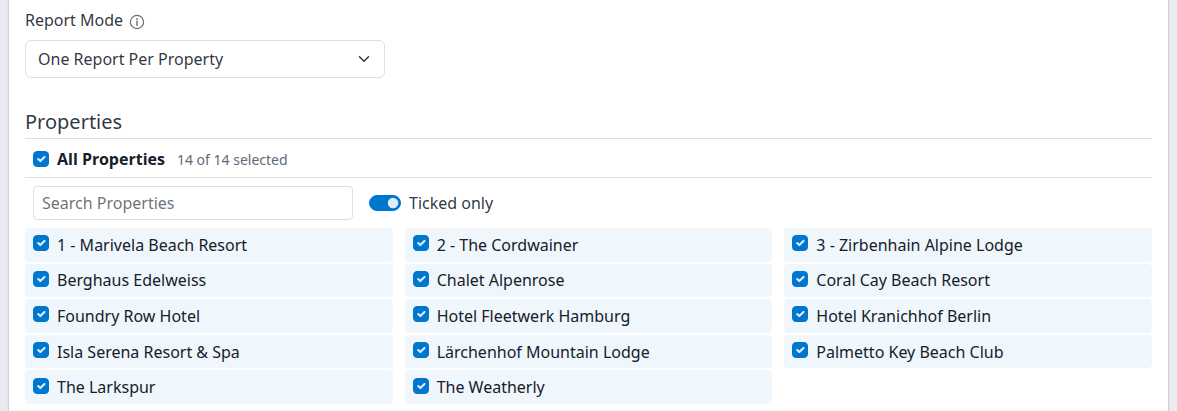
Use Search Properties to find names. Turn off Ticked only to see unselected properties. The All Properties checkbox selects or clears the enabled properties matching the search; clear the search first if you intend to affect the whole list. It ignores the Ticked only restriction and turns that switch off. The count still describes the whole list. Searching or hiding a property does not deselect it.
For a combined report, turn Include All Users With Access To The Property to No on Emailing before switching away from One Report Per Property. That option is hidden in combined mode but a previously saved Yes must still be cleared; the incompatible combination is rejected on Save.
Configure email delivery safely
Keep Emailing → Enabled = No while building and checking the report. You can save sections, recipients and schedules while delivery is disabled.
- Select the intended Properties and report mode.
- On Emailing, choose Email Empty Reports.
- Add or review the delivery schedules.
- Select approved users and any additional recipients.
- Choose Save & Refresh and review the reloaded values.
- Open View Report to check the saved sections and data for the intended property scope.
- Only when the scope and recipients are correct, set Enabled = Yes and save again to activate scheduled delivery.
Saving Enabled = Yes does not send an immediate test email. Delivery also needs an eligible schedule, at least one selected active property, at least one report section, and eligible recipients. There is no Send now control on this editor.

Email Empty Reports defaults to No for a new report. No omits sections that report themselves empty; if none remain, that property's report is not emailed. Yes includes empty sections. This is not a web-view filter. A section can contain useful setup/status rows without any problem to report; Occupancy can also remain nonempty with zero activity. Do not interpret No as “only send when something is wrong.”
Add, change or remove schedules
- In Email Delivery Schedule, choose Add a schedule.
- Set the hour from 1–12, a minute of 00, 15, 30 or 45, and AM or PM.
- Select the weekday chips when delivery should run. Choose at least one day; a schedule with every day cleared will not become due.
- Choose the time zone from the searchable selector.
- Repeat for another delivery time if needed.
- To remove a schedule, click its × button.
- Save the main form and verify the rows after reload.
A new row starts at 8:00 AM, every day, in your user time zone. Existing schedules retain their own time zone. The selected clock and weekdays belong to the selected zone; choosing another zone does not convert the displayed hour to an equivalent instant. The scheduled time is not a promise of exact mailbox arrival time.

Use one row for a given time and time zone. To add weekdays at the same time, select them on that row instead of creating a duplicate. If a schedule was added or removed elsewhere while your editor was open, follow the row's message and reload the saved configuration before reconciling it.
Older schedules may show an off-quarter-hour time or a damaged-schedule warning. Saving unrelated report fields leaves an untouched schedule unchanged. To repair or change that row, supply a valid time, quarter-hour minute and time zone, or remove it. Editing an older fixed-UTC schedule and successfully saving it converts that row to the selected local-time recurrence; review its weekdays and zone before saving.
Choose recipients
| Control | Who receives the report |
|---|---|
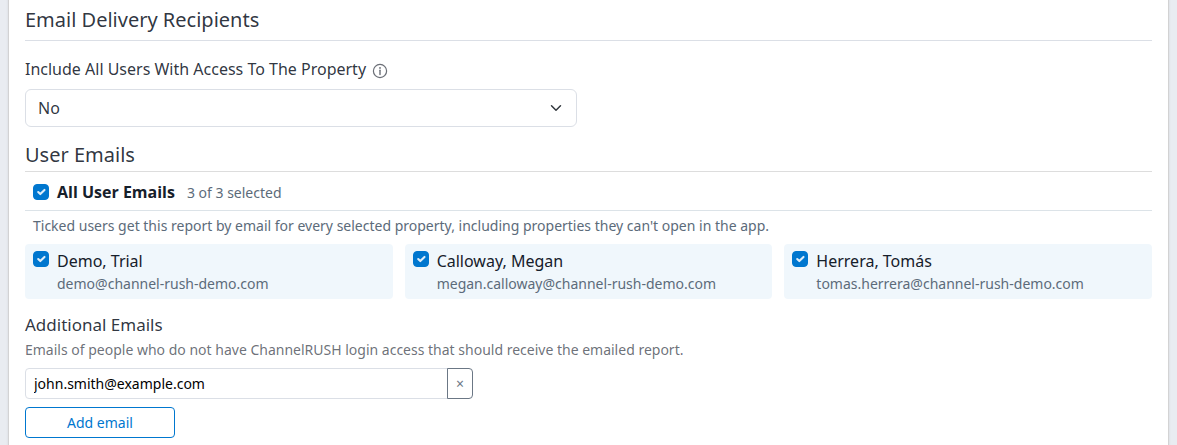
| Include All Users With Access To The Property | Available in One Report Per Property mode. Yes adds unlocked users in the organization with access to each particular property to that property's email. Defaults to No. |
| User Emails | Every checked eligible user receives every selected property's report, including properties they cannot open in the app. This explicit choice is separate from automatic property-user inclusion. |
| Additional Emails | External addresses that need not have a ChannelRUSH login. They receive the selected property reports too. |
The All User Emails checkbox selects or clears the offered users. Where a search is present, it applies to search matches; clear the search first to affect the full list. Removing a user's explicit check does not stop their email if automatic property-user inclusion still includes them.
For Additional Emails, choose Add email, enter one plain address per row, and use × to remove a row. You can edit an existing address directly. Blank rows are ignored; surrounding spaces are trimmed and repeated addresses are saved once without regard to case. An invalid address blocks the form's save; correcting its syntax does not verify that the mailbox exists. All additions, edits and removals are saved with the main form.
Check the saved result
After Save & Refresh, check all three tabs—not only the tab you edited:
- Report Settings: correct name, sharing, menu visibility, section order and criteria.
- Properties: intended mode and checked properties.
- Emailing: intended Enabled and Email Empty Reports values, schedule time/zone/weekdays, checked users and additional addresses.
Open View Report only after saving. Check the property headings, included sections and the period each section actually reports. For rolling analytics, dates are resolved when the report runs using the property's local date; the schedule's clock zone does not redefine every section's data period. To compare with a separate interactive report, match explicit dates, feed, filters and any as-of cutoff.
A saved configuration or a successfully opened web report does not establish that a scheduled email was sent or received. If an expected email is absent, use the checks below rather than repeatedly creating schedules or changing recipients.
Field reference: Report Settings
| Field | Meaning and new-report default |
|---|---|
| Name | Required, nonblank report name; surrounding spaces are removed. Identifies the saved report and emailed report. |
| Show in Reports Nav Menu | Defaults to Yes. Eligible reports with at least one section appear under Reports → Saved Reports. No hides the navigation shortcut; it does not delete the report. |
| Shared with organization | Yes - Org Report makes it available to the organization. No - Personal Report is the default and keeps it personal, subject to Org Admin access. This is not publication to the internet and does not restrict explicit email recipients. |
| Report Sections | One row per section type, in output order. Its Settings fields apply whenever that saved section runs. Add/remove/order changes need Save. |
Opportunities, group, discounted and manual-update sections
| Section / field | Meaning and default |
|---|---|
| Opportunities — Minimum Level | Blank includes all returned levels. Choose Info, Warning or Critical to match that exact level—not that level and every higher one. |
| Reservations - Group — Past Hours | Default 24. Looks back over captured reservation creation times. Enter a sensible positive whole number. |
| Reservations - Group — Number of Rooms | Default 6. Minimum room entries in one qualifying booking, including new/modified reservations. It does not combine unrelated bookings into a group block. |
| Reservations - Discounted — Past Hours | Default 24. Recent captured reservation window. |
| Reservations - Discounted — Percentage | Default 10. Minimum detected nightly discount against the stored channel net rate; missing/nonpositive comparison rates are unavailable, not a zero discount. It does not identify which promotion caused a discount. |
| Inventory Updates - Manually Created by Users — Past Hours | Default 24. Looks back over creation times of user-created inventory requests. |
These legacy lookback and threshold fields accept whole-number input but do not consistently enforce business ranges. Use positive lookbacks and meaningful room/percentage thresholds; do not use negative values to mean “all.”
Inventory Updates - Missing Availability
| Field | Meaning and default |
|---|---|
| Number of Months | Default 18. Future scan horizon, limited by each channel's supported advance period. Values above 36 are capped at 36; use a positive number. |
| Group By | By Channel or By Room Type; defaults to By Channel. Changes grouping, not which inventory is checked. |
| Channels | Select a subset, or all. No boxes checked also means all, including future additions. |
| Room Types | Select a subset of the offered standard room types, or all. No boxes checked also means all, including future additions. |
The unusual no-selection-means-all rule applies only to these section channel/room lists. It does not apply to report Properties or User Emails. Options can come from properties available to the editor; confirm that the chosen subset makes sense for each property that will run the report.
Stay-production sections
The following fields are shared by Daily Revenue / OTB, Length of Stay, Seasonal Trends, Booking Patterns — Cross-analysis, Rate Plan Performance, Cancellation Analysis, Channel Production and Booking Source Mix.
| Field | Accepted values, defaults and effect |
|---|---|
| Stay from / Stay through | Enter both dates or leave both blank. Inclusive, ordered range of at most 366 days. Blank uses the property's local run date and Rolling days. Explicit dates stay fixed while the captured reservation state can still change. |
| Rolling days (1–366) | Default 30. Must remain in range even when explicit dates are entered. |
| Reservation feed ID (1 = booking engine) | Positive source/feed ID; default 1. Not a property ID. A valid number alone does not prove data coverage. |
| Channel room ID (optional) | Exact source room identity, up to 200 characters; blank does not narrow by room. Not a standard-property mapping row ID. |
| Channel rate-plan ID (optional) | Exact source rate-plan identity, up to 200 characters; blank does not narrow by rate plan. |
| Currency (optional) | Blank keeps currencies separate; otherwise a currency filter, trimmed and uppercased, up to 10 characters. No automatic currency conversion. |
| Seasonal grouping | month, weekday or weekend; default month. Affects Seasonal Trends, not the other sections merely because they show the shared field. |
| Seasonal prior-year alignment | none (default), calendar or weekday. Seasonal Trends only. Compares current captured prior-period production, not historical on-the-books state. |
| Comparison feed ID (0 = none) | Rate Plan Performance only. Default 0; otherwise a positive feed different from the primary. Comparison data stays separate rather than being merged or deduplicated. |
| Include canceled business as separate rows | Defaults off where offered. Cancellation Analysis, Rate Plan Performance, Channel Production and Booking Source Mix instead always include active and canceled business in their stay-cohort denominator. These are not cancellation-event counts. |
Daily OTB measures captured stay-date nights/value, not posted accounting revenue. Length of Stay uses full-stay buckets with nights clipped to the selected period. Booking Patterns uses the first retained receipt for its booking-window analysis. Source reports do not assume bookings across feeds have been deduplicated.
Booking Pace / Pickup
| Field | Accepted values, defaults and effect |
|---|---|
| Reservation source ID | Positive source ID; default 1. |
| Stay days (1–93) | Default 30. Validated even with explicit dates. |
| Movement days (1, 3, 7, 14, 30) | Choose exactly one of these values; default 7. Controls the detailed movement window. |
| Stay start / Stay end | Both blank or both supplied. Inclusive ordered range, at most 93 dates, years 2000–2100. Blank uses the property's rolling period. |
| As-of with UTC offset or Z | Blank uses execution time. Otherwise enter a timestamp with an explicit offset or Z, such as 2026-09-08T12:00:00Z; it must not be in the future. Maximum 64 characters; year 2000 or later. |
| Source room ID / Source rate-plan ID | Optional exact source identities, up to 200 characters each. |
| Currency | Optional, up to 10 characters, trimmed and uppercased. Currencies are not converted. |
| Prior-year alignment (history gated) | Calendar (default) or Weekday. Selecting an alignment does not create missing qualified same-time-last-year history. |
This is retained receipt-based reconstruction, not a guarantee of original sale time or exact database-commit history. Incomplete history is not zero movement.
Portfolio Overview / Channel Net Revenue
| Field | Accepted values, defaults and effect |
|---|---|
| ChannelId | Positive reservation source ID. Default 1 for Portfolio; 572 (Mirai) for Channel Net Revenue. Net commission deduction is qualified for stored Mirai-supplied commission, not every accepted source ID. |
| Days | Default 30; 1–366. Rolling period when dates are blank; validated even with fixed dates. |
| OpportunityDays | Default 30; 1–90. Opportunity-message creation lookback for Portfolio. Still validated but does not change Net Revenue. |
| Start date / End date | Both blank or both supplied. Inclusive ordered range, at most 366 dates, years 2000–2100. Portfolio uses stay-date nightly production; Net Revenue uses a whole-booking arrival cohort, not clipped nightly net revenue. |
| Currency | Optional, up to 10 characters, trimmed and uppercased. Applies to both reports despite the shared “geography: Portfolio only” label. |
| Country | Portfolio only: optional exact property country code, up to 10 characters, trimmed and uppercased. Leave blank for Channel Net Revenue. |
| City | Portfolio only: optional exact property city, up to 100 characters, trimmed and case-insensitive. Leave blank for Channel Net Revenue. |
| Include canceled separately | Defaults off. Shows canceled business separately when enabled. |
A combined saved-report email contains per-property sections. Use the separate interactive Portfolio report for consolidated portfolio totals.
Mapping Coverage / Channel Health
| Field | Accepted values, defaults and effect |
|---|---|
| Channel ID (0 = all) | Default 0; nonnegative integer. A positive ID narrows each property's channels. |
| Terminal history days (1–90; Health only) | Default 30. Channel Health's terminal-request creation lookback; current pending/processing work is not limited by it. Keep a valid value for Mapping Coverage too. |
| State (blank = all) | Optional exact, case-sensitive state text, up to 60 characters. |
| Flow / kind (blank = all) | Optional exact, case-sensitive row kind, up to 60 characters. |
For Mapping Coverage, state values include Disabled, Missing target, Missing virtual parent, Not set up, Unknown, Mapped and Intent unknown. Kinds are Room mapping, Rate mapping, Hotel room coverage, Hotel rate coverage, CRS room and CRS rate.
For Channel Health, states include Failed requests, Disabled with pending work, Pending work, Unsupported, Disabled, Not set up, Unknown, Monitoring evidence, Idle, Idle / no retained activity and Review evidence. Flows are Outbound inventory, Inbound PMS inventory, Inbound PMS monitoring and Reservation delivery.
These text filters are not fuzzy searches. A typo can produce no rows; empty output is not proof of healthy distribution.
Internal Rate Consistency / Inventory Discrepancies / Restriction Coverage
| Field | Accepted values, defaults and effect |
|---|---|
| Channel | Required outbound inventory channel. The editor can suggest the first available choice; verify it for every selected property. A choice appearing in the list does not prove it is configured for each property. |
| RoomTypeId / RatePlanId | Nonnegative channel-setting mapping row IDs; 0 means all matching mappings. These are not standard-property IDs or external channel room/rate strings. Specific mappings are property/channel-specific. Ask support if you do not know the correct mapping identity. |
| Start date / End date | At most 31 dates, ordered, years 2000–2100. Blank start resolves to the property's current date; blank end resolves to six days after the resolved start. Unlike the other families, these fields can be supplied one at a time. |
| Field (blank = all) | Optional exact case-sensitive field text, up to 120 characters. Use a field relevant to the selected section. |
| State (blank = all) | Blank or one of the exact states listed below. |
Standard field names include Sell rate, Net rate, Allocation, Min stay, Max stay, Min through stay, Max through stay, Closed to arrival, Closed to departure, Cutoff days and Stop sell. Specialized rate-dimension names must match the actual evidence field; do not guess them.
State values are Consistent, Different values, Pending difference, Unknown, Currency not comparable, Unsupported, Not applied, Restriction recorded and No restriction recorded.
- Internal Rate Consistency includes rate fields only.
- Restriction Coverage excludes rates and Allocation. Its restriction states describe explicit recorded requested values after support/applicability checks; they do not establish effective channel restrictions or requested-versus-remote agreement.
- Inventory Discrepancies can include all fields and states; it is not automatically limited to differences.
An irrelevant but accepted Field/State combination can return no rows. These reports read stored images, not live OTA prices. Keep the scope within 500 mapped products, 3,100 product-days and 100,000 projected rows. Saving criteria does not run the report or establish that its selected scope fits those limits. Specific mapping IDs should not be reused blindly across properties.
Common problems
| Symptom | Check and safe next action |
|---|---|
| Properties and Emailing are unavailable on a new report | Enter a name and use Save & Continue first. If saving is refused, resolve the displayed restriction rather than repeatedly submitting. Demo logins cannot save these settings. |
| Changes disappear after reopening | Section edits, schedules and additional emails now require the main Save. Check for validation errors, then save and reload. Do not rely on the tab badge or current row list as proof of persistence. |
| Save reports an invalid schedule | Read the message beneath the row on Emailing. Supply a valid hour/minute/AM-PM/zone. For a duplicate clock/zone, use one row and select its days. |
| Save complains about property-user inclusion in combined mode | Switch to One Report Per Property, set automatic property-user inclusion to No on Emailing, then choose the intended combined mode and save. Review recipients again. |
| A section cannot be added because it needs an outbound inventory channel | Ask an authorized administrator to review channel setup. Do not choose an unrelated channel merely to bypass the requirement. |
| A report covers properties you cannot access | Ask an Org Admin to update it. Do not remove hidden properties to work around access restrictions. |
| Report is missing from the navigation | Check Show in Reports Nav Menu, report ownership/sharing and that it has at least one section. Find it through Manage Reports & Schedules with All selected. |
| Expected email is absent | Reopen the saved report. Check Enabled, selected active properties, sections, recipients, schedule days/time/zone and Email Empty Reports. Verify the recipient address and check the mailbox's spam handling. Do not create duplicate schedules as a retry. |
| A user still receives email after being unchecked | Check automatic property-user inclusion and Additional Emails as well as the explicit user list. |
| A report is empty or one section fails | Check its own source/feed, dates, property/channel setup and field/state filters. A configuration save is not a successful data query. Narrow an evidence report's date/product scope if it exceeds its bounds. |
If the problem remains, contact support with the report name, property/organization, affected section or schedule, action time and time zone, and exact error text. Do not send passwords or unnecessary guest data.