

Use Group Bookings to find recently received reservations with several rooms, then open the recorded booking to check whether it needs coordination.
Before you start
Select a property you can access. This report covers that property, not your whole organization. Running it reads stored reservations; it does not create a group block, change a booking, reserve additional inventory or resend anything.
A qualifying booking is one reservation with at least the selected number of recorded rooms. Separate reservations are not combined because they share a guest, company or stay dates. This is not a group-block management or pickup report.
Run the report
- Select the intended property in the property selector.
- Open Reports → Reservations → Group Bookings. The page heading is Group Reservations.
- Set Minimum Rooms to the smallest booking size you want to find.
- Set Past Days to the receipt lookback you want to examine.
- Select View Report. Changing a field alone does not apply it.
- Check that both values remain selected, then review the links or the empty-result message beneath the controls.
The initial report uses Minimum Rooms = 6 and Past Days = 1 unless the link you opened supplies other values.
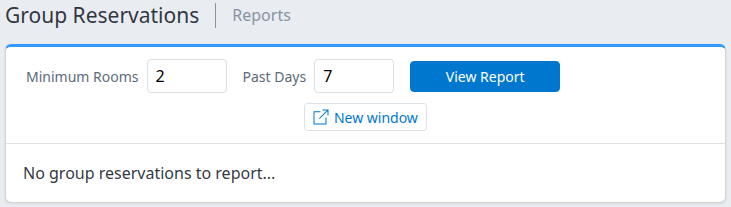
Example: a demo-property report after applying Minimum Rooms 2 and Past Days 7. The empty result is not an example of a qualifying booking.
Understand which bookings qualify
The report considers the latest stored version of each channel reservation for the selected property. That version must be a new or modified reservation, fall within the receipt lookback, and meet the room threshold. A latest cancellation excludes the booking.
Past Days is a rolling receipt window, not a stay-date filter. One day means the preceding 24 hours when the report runs; it does not mean yesterday or the current local calendar day. The window uses when ChannelRUSH recorded the reservation version, not necessarily when the guest originally booked. A recently received modification can therefore bring an older booking into the report. Arrival and departure dates do not determine inclusion.
Minimum Rooms counts recorded room entries within one reservation version. The threshold is inclusive: a reservation with exactly six recorded rooms meets a minimum of six. This is not a guest count, room-night count or count of distinct room-type names.
Read and check the result
Each matching reservation appears as a link. The link text identifies its confirmation or modification, channel and channel reservation ID. The list does not provide separate columns for room count, stay dates, guest details, amounts or delivery status.
- Select a reservation link to open its details in a new tab.
- Check the property, channel reservation ID, status, rooms and stay dates before arranging any follow-up.
- Use Review reservation details for the detail fields and access requirements.
The link opens the stored version represented by that result. If the booking may have changed since the report loaded, rerun View Report and investigate the current result rather than treating an older detail tab as live status.
A listed reservation is a candidate for review—not proof of a contracted group, a delivery failure or successful PMS delivery. Opening details does not amend, cancel or resend the booking.
No group reservations to report...
This means the report found no matching reservations for the selected property, room threshold and current rolling receipt window. It does not establish that the property has no future group stays or that every reservation has been delivered successfully.
Check the selected property first. If appropriate, reduce Minimum Rooms, increase Past Days, and select View Report again. A booking can remain absent because its latest stored version is canceled, too old for the receipt window, or below the room threshold.
Open the report separately
Select View Report to apply any changes, then select New window. The report opens in a separate tab without the main application navigation, leaving the original page open. The new tab retains the loaded property and filter values; it does not apply unsent edits from the original form.
You can change the two fields and select View Report in that tab. Close it to return to the original page. Each reload evaluates the moving receipt window again, so results can change over time.
This page has no Excel, CSV or PDF export, clipboard control, or email-send action. A Group Reservations section in a saved report has separate configuration, including a Past Hours setting; running this standalone report does not change an email schedule.
Field reference
| Control | What it does | Values and example |
|---|---|---|
| Property selector | Chooses the single property whose stored reservations are examined. | Select the property before opening or running the report. |
| Minimum Rooms | Minimum number of recorded rooms in one reservation. The boundary is inclusive. | Enter a whole number of at least 2. Initial value: 6. Use 2 to include bookings with two or more recorded rooms. |
| Past Days | Rolling lookback for when the latest reservation version was recorded in ChannelRUSH. | Enter a whole number of at least 1. Initial value: 1, meaning the preceding 24 hours. Use 7 for the preceding seven 24-hour periods. |
| View Report | Applies the displayed criteria and reloads the result. | Select it after changing either field. It does not save reservation changes or send messages. |
| New window | Opens the loaded report in a separate tab without the main navigation. | Apply your criteria with View Report first. This control is not repeated inside the separate report tab. |
| Reservation link | Opens details for the stored reservation version shown in the result. | Review the identity, status, rooms and dates; do not read confirmation/modification as a delivery outcome. |
Keep both numeric fields filled with ordinary whole-number values. The browser exposes minimums, but the page does not provide a documented maximum or comprehensive validation messages for manually altered URLs.
Common problems
- The report still uses the old criteria: changing a field does not reload the result. Select View Report, then confirm the retained values. If you opened New window first, return to the original tab, apply the changes and reopen it.
- A known booking is missing: check the property, latest reservation status, recorded room count and receipt window. Separate booking IDs do not add together. For an individual booking, open Reservations → Search, enter its Reservation ID and select Search; a missing Group Bookings result is not proof that the reservation is absent from ChannelRUSH.
- The browser refuses a value: use whole numbers of at least 2 for Minimum Rooms and at least 1 for Past Days. Do not bypass the form by editing the URL to force unsupported values.
- The report shows an error or fails to load: an error is not an empty result. Reopen Reports → Reservations → Group Bookings to return to the default criteria, then try a modest lookback. Rerunning this report does not send or change reservations. If the failure persists, contact support with the property, both criteria, action time and time zone, and the visible error text.
- Details request password verification or deny access: follow the normal ChannelRUSH verification prompt or ask your organization administrator to check property access. Do not send a password to support. Use the linked reservation-detail guide for protected payment fields.
Do not include payment details, passwords, full reservation screenshots or unnecessary guest information in a support request.