

Change an existing booking tax, choose which charges and rooms it applies to, and check its effect on the guest's price.
Before you start
- Select the correct property. You need Booking Engine / CRS - Settings permission to save changes.
- Confirm the tax rate, inclusion policy and property currency with the person responsible for your property's tax setup. The example values in this guide are not tax advice.
- This page edits an existing tax. To add a separate tax, use Add New beside Taxes on CRS Settings instead. Do not rename an existing tax to represent an additional charge.
- Changing a tax can affect subsequent booking-price calculations. Saving this page is not a payment, refund or confirmation that a channel has accepted the change.
Open the tax
- Select your property in the property selector.
- Open Admin → Settings - CRS.
- Select Rooms & Rates.
- Go to Taxes.
- Select the tax's name. Tax Edit opens for that property and tax.
The Taxes list shows ID, Name, Amount, Rates, Add Ons, Fees and Enabled. Use the name and amount to identify the correct tax before opening it.
Change the tax
Fields do not save as you type. Save and Save & Refresh submit the entire form, including the names on every Content tab.
- Enter a clear Name.
- Choose Amount Type: % Percentage or $ Flat Fee.
- Enter Amount. For a percentage, enter
7.0for 7%, not0.07. A flat amount uses the property's currency; the dollar symbol in this selector does not change that currency. - Set Included to Yes when the tax is already contained in your price, or No when it must be added on top. This does not rewrite your stored room rates.
- For a percentage tax, set Room Rates, Add Ons and Fees to choose its calculation basis.
- Check All Room Types and any existing room selections. Read the room-scope warning below before changing Yes to No.
- Set Enabled to Yes to apply the tax, or No to retain its setup without applying it in booking calculations.
- Complete the appropriate names under Content.
- Select Save to return to CRS Settings. Alternatively, open the arrow beside Save and select Save & Refresh to save and reopen this tax.
Flat-tax warning: In the booking's final calculation, a flat tax is one amount per booking once its room scope matches. It is not per night, person or room. Room Rates, Add Ons and Fees do not switch a flat tax off. Use Enabled = No if you need to stop applying it.
Cancel returns to CRS Settings without submitting your current edits. It does not undo a previous Save.
Choose all rooms or selected rooms
- All Room Types = Yes: you do not need to select individual rooms.
- All Room Types = No: the saved editor displays Room Types checkboxes. Select the rooms that should qualify, then save. No selected rooms means no matching room—not all rooms.
- A room-restricted tax applies only when the booking contains a selected room. A percentage tax uses those rooms' applicable amounts. If Add Ons or Fees is Yes, it can also include eligible booking-level charges when at least one selected room is present.
Changing from all rooms to selected rooms
This is a two-save change, not a display-only refresh. When the editor starts with All Room Types = Yes, changing the dropdown does not immediately display the room checklist. Saving No first can leave the tax with no selected rooms, so it may stop applying until you complete the second save.
If your property is actively selling and cannot tolerate that intermediate state, arrange the change with support before proceeding.
- Change All Room Types to No.
- Select Save & Refresh. This saves the change and reloads the editor with the room checklist.
- Select the intended Room Types.
- Save again.
- Reopen the tax and verify both All Room Types = No and the selected rooms.
When changing back to Yes, save and recheck the result. Do not rely on earlier room selections being remembered after later scope changes.
Set the names under Content
The top Name is the main tax name. Content contains a separate Name field for each property content profile. The tabs use your configured profile names; they may be named after languages.
- Select a Content tab.
- Enter the tax's Name for that profile.
- Repeat for each applicable tab.
- Save the form.
Complete these names rather than assuming a blank field will fall back to the main Name. Different booking displays can use different name fields. Both save actions submit all tabs, not only the active tab.
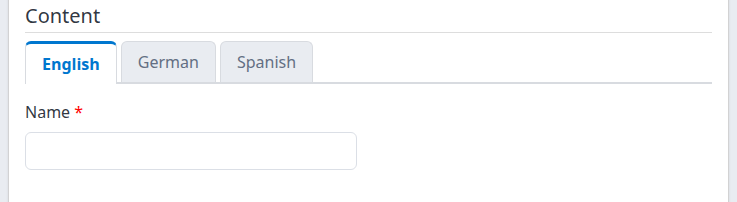
The Content section of a demo tax, before its profile-specific names have been filled. Your tabs and saved names may differ.
Check the result
- After saving, check for the application's saved-settings confirmation. Remaining on the form without a confirmation is not proof that your edits were saved.
- Return to Rooms & Rates → Taxes and check the name, amount, application flags and Enabled value.
- Reopen the same tax. Check Included, room scope, any selected rooms and each Content name; the list does not show all of these settings.
- On your property's booking website or widget, review a price breakdown for a representative stay before completing a booking. Include the relevant room and any taxable add-ons or fees. For restricted taxes, also compare a room that should not qualify.
- Check that an included tax is not added again and an excluded tax contributes the expected extra amount.
A saved-settings confirmation establishes a local save, not channel acceptance. Search estimates and final booking totals can present taxes differently; do not use a search summary alone to verify a complex setup. If you distribute these settings to channels, check the intended destination separately. Room restrictions, calculation bases and flat-tax handling are not identical across every channel. Ask support to confirm compatibility before assuming a booking-engine tax will produce the same channel result.
If a save times out or reports an error, reopen the tax and inspect its saved settings and Content names before trying again. Some settings can have saved before a later step failed.
Field reference
Existing taxes show their saved values, not a universal set of defaults.
| Field | What it changes / how to enter it |
|---|---|
| Name | Required main tax name. Use a recognizable name; it can appear on calculated tax lines. |
| Amount | Numeric percentage or flat amount. For percentage taxes, 7.0 means 7%. Clearing the field changes it to zero when you leave the field; it does not delete or disable the tax. Use Enabled rather than zero to stop a tax. |
| Amount Type | % Percentage calculates from the selected taxable amounts. $ Flat Fee uses a fixed amount in property currency, once per qualifying booking in the final booking calculation. There is no per-person or per-night selector here. |
| Charge Type (channels) | Classification used by supporting channel connections, not the tax rate or a destination selector. Options are - not set -, Vat, Tax, CityTax, CleaningFee, ResortFee, ServiceCharge, DestinationCharge, PetFee and TransferFee. Use the classification agreed for the destination; leaving it unset can cause the tax to be omitted from a channel's tax update. |
| Account ID | Optional reference. Keep the value specified for your property's setup, or leave it blank if none is required. It does not set the tax amount. Do not enter credentials here. |
| Enabled | Yes applies the tax in booking calculations when its room scope matches. No retains the configuration without applying that tax. This is separate from whether the tax is included in the price. |
| Room Rates | For a percentage tax, Yes includes applicable room-rate totals in its basis; No excludes them. Does not limit a flat tax. |
| Add Ons | For a percentage tax, Yes includes eligible add-on amounts. Add-ons already marked inclusive or carrying their own tax percentage are excluded from this property's percentage-tax basis. Does not limit a flat tax. |
| Fees | For a percentage tax, Yes includes eligible fee amounts. Fees already marked inclusive or carrying their own tax percentage are excluded from this property's percentage-tax basis. Does not limit a flat tax. |
| All Room Types | Yes uses all rooms. No uses the room selections displayed after that value is saved. Changing Yes to No requires the two-save procedure and warning above. |
| Room Types | Appears when the saved tax has All Room Types set to No. Check qualifying rooms. The group checkbox selects or clears the available boxes; the selection still needs Save. |
| Included | Yes identifies tax already in the price; it is shown rather than added a second time. No adds tax on top. An included percentage extracts the tax portion from its basis rather than applying the same calculation as an extra percentage. |
| Content → Name | Profile-specific tax name. Fill each applicable tab and check the saved text; do not rely on empty-name validation or automatic fallback. |
Percentage taxes are calculated separately, not compounded as tax on tax. The room-rate, add-on and fee portions are rounded separately. A fee or add-on with its own tax percentage is calculated under that override rather than being taxed again by the property's percentage tax.
Common problems
| Symptom | Likely explanation and safe next action |
|---|---|
| Controls are disabled | Your user may lack Booking Engine / CRS - Settings permission. Ask your Org Admin to check access. |
| The tax does not open | The link may refer to another property or a deleted tax. Select the correct property and reopen it from its Taxes list. If it remains unavailable, send support the property and tax ID. |
| Save returns to the form without a clear result | Check that the main Name is filled and Amount is a valid number. Verify the stored values before assuming success. If the result is unclear or the same problem repeats, contact support rather than repeatedly submitting. |
| No Room Types checklist appears | The editor was loaded with All Room Types set to Yes. Follow the two-save warning above; changing the dropdown alone does not load the checklist. |
| The tax is missing from a booking price | Check Enabled and room scope. For a percentage tax, also check Room Rates, Add Ons and Fees. A percentage tax can have no eligible basis when amounts are excluded, inclusive, or use their own tax override. An included tax is not an additional charge. Escalate if the final breakdown still disagrees with the verified setup. |
| A flat tax remains after all three basis switches are No | Those switches control percentage taxes, not flat taxes. Use Enabled to stop the flat tax, then check the final booking price. |
| A displayed tax name is blank | Check every applicable Content name as well as the main Name. Save the intended text and inspect that booking display again. |
| An error occurs after Save | The main tax and content names may not have the same save outcome. Reopen and compare both before retrying. Contact support if the stored result or downstream effect is uncertain. |
| A channel's tax differs from the booking engine | Channel support for room restrictions, charge classification and calculation basis varies. Preserve the intended configuration and ask support to check that destination; do not repeatedly save or send changes to diagnose it. |
For support, include the property, tax name or ID, affected room/charge type, relevant stay dates, destination, action time and time zone, and the error text or price difference. Do not send passwords, payment details or unnecessary guest information.