

Add a testimonial to a property's content profile, or update an existing entry, then verify the saved wording in the intended language.
This editor manages property website content. It is separate from organization testimonials, OTA guest reviews and Share your experience, which is feedback about ChannelRUSH.
Before you start
- Select the correct property. You need an existing content profile for the intended language.
- You need the Content editing permission. Ask your organization administrator if the form is disabled or a save is refused.
- Use wording and a public display name you have permission to publish. Do not include booking references, contact details, payment information or private guest information.
There is no separate draft/publish switch. Save only text that is ready for use by a website configured to display this content profile. Saving an entry does not prove that a website is displaying it.
Open the property's testimonial list
- Select the property in the property selector.
- Open Admin → Settings - Content. Alternatively, open Settings - CRS, then select Content.
- Check the property name above the tabs.
- Select the intended content profile, such as English. Check its Content Profile Name and Language; a profile name alone does not establish its language.
- Go to Website Pages & Lists, then Testimonials.
- Click Add New, or click an existing person's name to edit that testimonial.
The page is titled Edit Testimonial Content. A new entry shows New Testimonial with empty fields; an existing entry shows its person name and saved values. The editor does not repeat the content profile's name, so confirm the profile before opening it. If unsure, use Cancel and check the parent list.
Do not use Booking Engine Organization Settings for this task: that changes a separate organization-content list.
Enter the testimonial
Typing and selecting values does not save the form. Submit with Save or Save & Refresh only when the complete entry is ready.
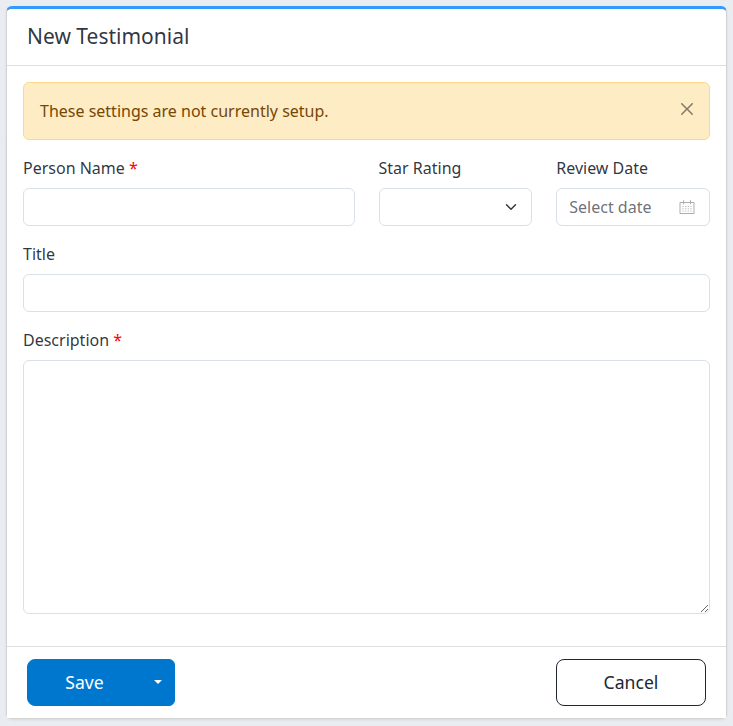
New testimonials show “These settings are not currently setup.” The entry has not yet been saved; this is not a website-publication status.
- Enter Person Name, using the approved public display name.
- If supplied with the testimonial, select Star Rating from 1 to 5. Otherwise leave it blank.
- If known, choose Review Date using the date picker. Otherwise leave it blank.
- Optionally enter a short Title, such as “A welcoming stay.” This is the testimonial's headline, not the guest's hometown.
- Enter the testimonial wording in Description.
- Check the property, profile, wording and optional values, then choose a save control below.
Person Name and Description are required. Blank or whitespace-only text is not valid. Do not invent a rating or date to fill an optional field.
Save or leave the editor
- Save stores the entry and returns to its Testimonials section in CRS Settings.
- Open the arrow beside Save, then choose Save & Refresh to store the entry and reopen its editor. “Refresh” reloads the saved entry; it is not a preview or a separate website-publishing action.
- Cancel returns to the testimonial list without submitting your current edits. It does not undo a previous successful save. If an unsaved-changes prompt appears, continue only if you intend to discard those edits.
Read any success or validation message. A form that remains open after submission is not proof of a successful save. If the outcome is unclear, check the list before repeating the action.
Check the result
- Return to the same property's Content tab and select the same content profile.
- Find the person's name under Testimonials.
- Click the name to reopen the entry. Confirm Person Name, Description and any rating, date or title. After Save & Refresh, check those values on the reopened editor as well.
- If the testimonial is intended for a website, open that website in the intended language and inspect its testimonial section separately.
The list identifies entries by ID and Name and shows a Setup indicator. Setup reflects whether the stored testimonial has description text; it is not human approval or proof of public visibility. Reopening the entry is the check for its complete saved values.
Website display depends on the selected content profile and theme. A theme may show only some testimonials or omit fields such as the title, rating or full date. Do not treat a saved record as confirmation of OTA publication or channel acceptance.
Each content profile has its own testimonial list. Editing one does not translate or update another profile. Return to the parent page and select the other profile to maintain its entries separately.
Remove an existing testimonial
An existing entry has a Delete link; a new unsaved entry does not. Clicking Delete opens a separate confirmation page rather than removing the entry immediately.
- Open the intended saved testimonial and click Delete.
- Check the person name on the confirmation page.
- Click Delete there only if you intend to remove the entry. Use Cancel to return to the list without deleting it.
- Check that the entry is absent from the same profile's list. Check the website separately if it displayed that testimonial.
There is no restore control in this workflow. Do not delete and recreate an entry merely because it is missing from the website. Ordering is managed separately through Sort on the parent testimonial list when it contains more than one entry; saving this editor does not choose a display position.
Field reference
All fields start empty for a new testimonial. Existing entries open with their saved values.
| Field | What it does and how to use it |
|---|---|
| Person Name | Required public display name, for example an approved “Alex R.” Blank or whitespace-only text is invalid. |
| Star Rating | Optional rating: 1, 2, 3, 4 or 5. Blank means no rating, not zero stars. Select the blank option and save to remove an existing rating. |
| Review Date | Optional date associated with the testimonial. It does not default to today and is not an automatic last-edited timestamp. Use the date picker; clear it and save to remove a saved date. |
| Title | Optional testimonial headline, for example “A welcoming stay.” Clear it and save to remove it. Its public display depends on the theme. |
| Description | Required testimonial body in a plain-text, multiline box. Blank or whitespace-only text is invalid. Write for the selected content profile's language. |
This editor has no language selector, photo upload or publication toggle. Select the profile on the parent page before opening it.
Common problems
- The new form says “These settings are not currently setup.” A new unsaved testimonial has no setup status yet. Complete the required fields, save when ready, then check the saved entry. If the warning remains after a successful save, reopen the entry and contact support if its description is present but it remains not setup.
- Person Name or Description is rejected. Check for a blank or spaces-only value, correct it and save again. If complete text is still rejected, contact support with the profile and visible message.
- The form returns after Save without a clear message. Check the rating and use the date picker for the date. Do not assume the save succeeded. Reopen the list to check the outcome; if valid values still cannot be saved, stop and contact support.
- The saved entry is missing. Check the property and content profile first. Reopen the list before clicking Add New again. If it remains missing after an apparently successful save, report the action time and message to support.
- A save timed out or its result is unclear. Look for the intended entry in the same profile and reopen it before retrying. Repeating a new-entry submission can create another record. Ask support to establish the outcome if you cannot tell whether the first save completed.
- The entry is saved but missing from the website. Ask the website administrator to verify the website's content profile, language and testimonial display. If those are correct, contact support with the website URL. Repeated saves or duplicate entries are not a visibility fix.
- Some fields or testimonials are absent from the website. Confirm the saved values, then check the theme's presentation and any displayed-item limit with your website administrator or support.
- The form is disabled or a save is refused. Ask your organization administrator to check the Content permission and account restrictions. Do not use another route to work around the restriction.
- An old edit link fails. Open the current property's testimonial list and select the entry again. If that also fails, send support the page URL and profile name; do not guess different identifiers in the URL.
For support, include the property, content profile/language, action, action time and time zone, and visible error. Include the website URL for display problems. Do not send passwords or unnecessary guest details.