

Use Booking Policy Calendar to assign an existing booking policy to selected dates and CRS rate plans, or remove date overrides so the plans follow their usual policies.
Before you start
- Select the correct property. You need permission to edit Booking Engine / CRS – Settings to save changes.
- The property needs existing CRS rate plans and booking policies. This page assigns policies; it does not define their deposit, cancellation or refund terms. Review those terms in CRS Settings first.
- Decide which arrival dates and rate plans you intend to change. A calendar dropdown saves immediately when you change its selection. The separate bulk panel saves only when you click Apply to these dates.
- Changing the calendar is not a way to rewrite terms already saved on a booking. Review an existing reservation's own terms for a guest enquiry; later reservation modifications are a separate workflow.
Open the calendar
- Select the property in the property selector.
- Open the property's Admin settings page and choose CRS Settings. If you are using Accounts, you can instead open ChannelRUSH CRS beside the property.
- Open Rooms & Rates.
- In Booking Policies, click Booking Policy Calendar.
The breadcrumb shows Booking Policy Calendar. Check the selected property before editing.
Understand which policy a stay uses
Ordinarily, the arrival date determines the policy for the room's entire stay:
- A policy assigned to that arrival date for the selected CRS rate plan takes precedence.
- Without a date override, the plan uses its own booking policy.
- If the plan follows the property default, it uses the property's default booking policy, identified as (default) in the legend.
A date override selects a whole policy. It does not combine a different cancellation policy for each night or edit the policy's terms.
Policies that apply to stays crossing their dates
Some policies are configured to apply to every stay that includes one of their assigned nights. When the property has such policies, the explanation above the calendar names them in strictest-first order.
A later occupied night assigned one of these policies can override the arrival-date policy if it is stricter. The departure date is not an occupied night. This matters for stays that arrive before an event but include event nights.
Strictness considers a cancellation fee from booking first, then an earlier free-cancellation deadline, a higher cancellation fee, a higher base deposit and finally the property's policy-list order. Do not judge it from the policy name or color alone. Any stay-dependent deposit rules still apply after the policy is chosen.
Read the legend and dates
- No color and a gray policy name: no policy is assigned specifically to that date. The date follows the rate plan's normal policy. This does not mean no policy or free cancellation.
- Green: a policy with a free-cancellation period. Read its deadline and later charges in the legend; green does not mean cancellation is always free.
- Amber: a partially refundable policy.
- Red: the policy is classified as non-refundable or does not allow cancellation.
- (default): identifies the property default, not a separate date override.
Each rate-plan heading shows Dates with no policy of their own: followed by its fallback policy. A policy name may appear both under The rate plan's policy and under Set on this date in a date's dropdown. The first follows the plan; the second explicitly assigns that policy to the date.
Find the dates and rate plan
- Choose 1 month, 2 months or 3 months.
- Use Previous or Next to move by that many months, or This month to return to the property's current month.
- If there is more than one plan, choose a plan in Rate Plans, or choose All rate plans. The calendar reloads when you change this filter.
- Check the month heading and rate-plan heading before selecting a date.
These controls change the calendar display, not policy assignments. On a narrow screen, dates appear as a list instead of a seven-column calendar. Past dates are disabled in the calendar, using the property's current date.
The calendar's Rate Plans filter does not limit a bulk update. The bulk panel has its own rate-plan checkboxes and initially selects every plan, including plans hidden by the display filter.
Change one date
Selecting a different policy immediately sends the change. There is no final calendar Save button.
- Find the intended date beneath the correct rate-plan heading.
- Open that date's dropdown.
- Select the required policy under Set on this date.
- Wait for Saving… to finish and the date to show Saved before making another change.
- Reload the calendar and inspect that plan and date to confirm the assignment remains.
Avoid making several rapid changes to the same date. If the save fails or the response is unclear, follow the recovery guidance below rather than assuming the previous selection means nothing was saved.
Remove a date override
In that date's dropdown, select the entry under The rate plan's policy. This also saves immediately. After a successful reload, the date has no color and follows the policy named beside the rate-plan heading.
Removing an override does not delete a booking policy or remove the plan's underlying terms. For a stay crossing other dates, an applicable stricter whole-stay policy can still take precedence.
Set or clear a range of dates
The bulk panel is separate from the calendar. Changing its fields does not apply the policy until you submit it.
- Open Set a policy for a range of dates.
- Under Dates, select both the start and end date. Both endpoints are included when their weekdays are selected.
- Under On these days, select the weekdays to update. The checkbox beside the heading selects or clears the group. Review the selected-day count.
- Under Rate Plans, select only the intended CRS plans. The checkbox beside the heading selects or clears that group. Review the selected-plan count—even if the calendar displays only one plan.
- Choose the required Booking Policy.
- Recheck dates, weekdays, plans and policy, then click Apply to these dates once.
- Read the confirmation and inspect the affected dates in the calendar.
Important: the initial Booking Policy selection is None: use the rate plan's own policy. Submitting that selection clears date overrides for the chosen dates and plans. It is not a “leave unchanged” option.
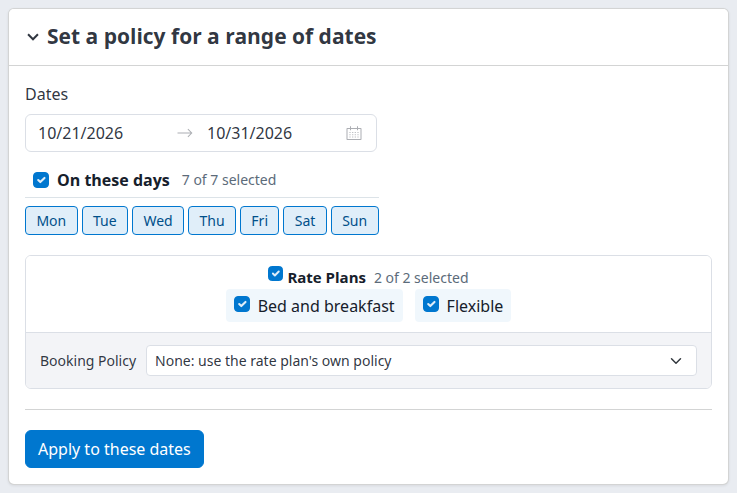
The demo property's bulk panel. Its plan selections are independent of the calendar's display filter. No update was submitted for this image.
An assigned policy replaces the previous date override on each selected plan/date. Unselected weekdays and plans are not part of that bulk assignment.
After success, the calendar opens at the range's first month. Its existing display-plan filter remains, so switch to All rate plans or inspect each affected plan if necessary. A confirmation's date count includes each selected date for each selected plan; it is not necessarily the number of distinct dates or values that changed.
Check the result
- Single date: wait for Saved, then reload and inspect the same property, plan and date.
- Bulk update: read the policy name or cleared-policy message and listed plans. Review dates across the whole selected range, not only the first displayed month. Clearing should leave the affected dates following each plan's fallback.
- Guest-facing terms: before relying on changed terms for sales, check the relevant room, plan and arrival/departure dates in your guest-facing booking flow without completing a test booking. Include a stay crossing event dates when using a whole-stay policy. Compare the displayed deposit and cancellation terms, not only the policy name.
A saved calendar confirms the local assignment. It does not establish that every external channel has accepted a policy change or that an already-open booking page has refreshed. If the guest-facing terms differ, stop making further policy changes and ask support to investigate with the property, plan and stay dates.
Field and control reference
| Control | What it changes | Default or important detail |
|---|---|---|
| 1 month / 2 months / 3 months | Number of months displayed per plan. | The normal initial view is one month. This does not limit the bulk date range. |
| Previous / Next | Moves the display backward or forward. | Moves by the selected number of months; keeps the plan filter. |
| This month | Returns to the property's current month. | Keeps the number of months and plan filter. |
| Calendar Rate Plans | Displays one plan or all plans. | Defaults to All rate plans; appears when there is more than one plan. Does not change bulk selections. |
| Date dropdown — The rate plan's policy | Removes the date's explicit override. | Shows the current fallback policy name; changing to it saves immediately. |
| Date dropdown — Set on this date | Assigns one of this property's policies to that date and plan. | Saves immediately. Read the policy legend before choosing. |
| Set a policy for a range of dates | Opens or closes the bulk panel. | Initially closed. Opening it does not submit an update. |
| Bulk Dates | Selects the inclusive update range. | Initially starts at the later of today or the displayed first month, and ends at the last displayed month's end. When viewing an entirely past period, choose a valid range explicitly. The application rejects an end date earlier than the start and ranges with more than 731 days between endpoints. |
| On these days | Limits the range to selected weekdays. | All weekdays initially selected. At least one date in the range must match your selection. |
| Bulk Rate Plans | Selects the plans to receive the assignment or clearing action. | All initially selected; at least one required. Independent of the calendar filter. |
| Bulk Booking Policy | Policy to assign to every selected plan/date. | Defaults to None: use the rate plan's own policy, which clears overrides. Only the property's existing policies are listed. |
| Apply to these dates | Submits the bulk operation. | Review all four inputs before submitting. There is no separate preview or undo step. |
Common problems
“Not saved, try again,” an error, or a request that never finishes
A failed response does not prove the database was unchanged. The dropdown may return to its remembered choice even if the server saved the attempted value. A bulk operation can also stop after some assignments have saved.
Reload the page and inspect the affected scope before retrying. If the stored assignment is already correct, do not repeat the operation. If it is wrong and the intended correction is certain, make one controlled correction and check it again. If the scope or outcome is unclear, stop and contact support rather than repeatedly applying the whole range.
The form asks for dates, weekdays or rate plans
Use a valid start and end date, a range within the stated limit, weekdays that occur in that range, and at least one plan. Validation messages include Choose the dates to set: a start and an end date., Choose a range of two years or less., Choose at least one day of the week., and Choose at least one rate plan.
For these validation refusals, the bulk panel reopens with its submitted choices. Review all selections before correcting and resubmitting. Do not assume the display filter limits the retry.
“That booking policy no longer exists. Choose another.”
The policy is no longer available in this property's settings. Review the current policy list and choose an existing policy. If you cannot identify the intended replacement, ask your administrator or support before applying anything.
Dates or controls are disabled
Past calendar dates are disabled. For current or future dates, ask your administrator to check your property access and CRS-settings permission. Demonstration logins cannot save these settings. Do not use the bulk panel as a workaround for a permission restriction.
The bulk panel or plans are missing
The bulk panel requires at least one booking policy and one CRS rate plan. The page identifies missing policies or plans. Complete the corresponding setup in CRS Settings first; contact your administrator if the setup exists but is unavailable to you.
The policy name appears twice, or a gray date still has restrictive terms
The duplicate name distinguishes following the plan from explicitly pinning that policy to a date. Gray means inherited, not refundable. Read the fallback beside the plan heading and the policy's legend. For an unexpected stay result, also check later occupied dates for policies that apply to every stay including those nights.
When contacting support, provide the property, CRS rate-plan name, affected dates, intended policy, action time and time zone, and exact error text. Include whether you changed one date or used the bulk panel. Do not send passwords, payment information or unnecessary guest details.