

Connect an additional room type on a channel to an existing standard room type in your property.
A virtual room type is an additional channel mapping under a standard property room type. It does not create another standard room type or another physical room. For example, if two room products on a channel should belong to the same standard room type, one can be the main mapping and the other a virtual mapping. Confirm that relationship before adding it; a similar name is not enough.
Before you start
- Select the correct organization and property, then confirm the channel you are configuring.
- You need Channel Settings permission to save. If the form is disabled, ask your organization administrator to check your permissions. Public demonstration logins cannot submit this settings change.
- The channel must already be assigned to the property, and the intended standard room type must already exist.
- Have the channel-confirmed room name and room ID. Check the existing mappings first so you do not add a room that is already connected.
- This workflow is not supported for Inventory Receive connections, such as a PMS sending inventory into ChannelRUSH. The Add Virtual Room Type link can still appear for those connections; its presence does not mean they support virtual rooms.
- Plan the virtual room's rate-plan mappings, occupancy and updating settings as well. Adding the room is not proof that its complete setup is ready to distribute inventory.
Save is a real settings change, not a preview. ChannelRUSH saves the mapping locally and, for connections that support it, then attempts a settings push. The push can concern the connection's settings, not only the new room. Review the property and channel before saving. A later send error does not undo the local save.
Open the form
- Select your property in the property selector.
- Open Admin → Settings - CM.
- In Channel Manager → Channels, click the channel's name.
- On Channel Settings, open Menu → Add Virtual Room Type. There is also an Add Virtual Room Type link above the room sections.
- Confirm the channel in the breadcrumb and the heading Add New Virtual Room Type.
If you normally work from Accounts, clicking the channel name beneath the correct property opens the same Channel Settings page.
Choose the parent room type
In Room Type To Add Virtual Room Type To, select the existing property room that should contain this additional channel mapping.
The standard property room name appears in square brackets. If its main channel mapping has a name, the option also shows that channel name and its ID. Those details identify the parent's existing mapping, not the new virtual room's name or ID.
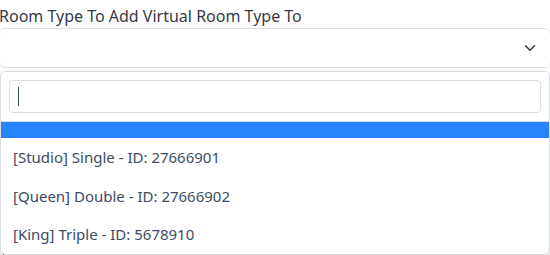
Example choices from a demonstration property. Use your property's room names and channel IDs.
The selector starts blank. You must choose a parent. If the intended standard room is missing, stop and confirm the selected property and its standard room setup rather than attaching the virtual room to another room temporarily.
Add the channel room
The form shows one of two alternatives. You do not need to fill both.
When you see Virtual Room Type To Add
This dropdown appears when ChannelRUSH has stored channel mapping information containing room IDs that are not already mapped in this connection.
- Select the intended room in Virtual Room Type To Add.
- Check both the displayed channel room name and ID against the room you intend to connect.
- Recheck the parent room, then click Save once.
The selection supplies the channel room's name and ID. ChannelRUSH also takes its updating-enabled value, available occupancy values and supported room-level settings from the stored mapping information. It does not copy all of the parent's settings or automatically add every rate plan.
The list uses stored mapping information; opening this form does not retrieve a fresh room list from the channel. A missing room can mean it is already mapped or is absent from the stored list. Do not choose another room as a substitute. Check the channel settings and ask support to help verify the mapping information if necessary.
When you see Virtual Room Type Name and Channel Room Type ID:
This is the manual-entry form. It appears when the stored mapping information does not offer an unmapped room to select; that does not prove the channel has no other rooms.
- Enter the intended channel room name in Virtual Room Type Name.
- Enter its exact channel-issued identifier in Channel Room Type ID:. This is not the standard property room ID or the ID displayed beside the selected parent.
- Check the parent, name and ID together, then click Save once.
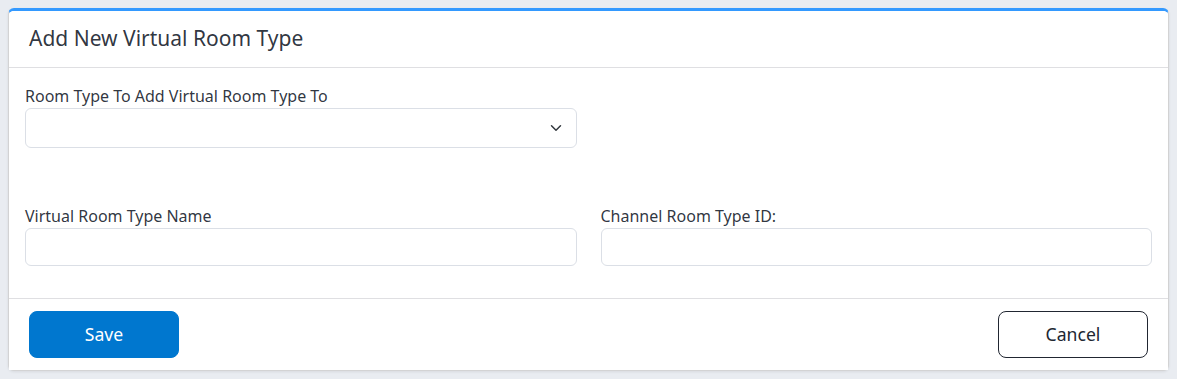
The manual form starts with blank fields. Do not copy IDs from the example parent selector.
Use a meaningful name and the correct nonblank channel ID even though these fields do not show required markers. A saved entry with missing setup information is not a usable mapping. The ID is a channel identifier, not a number to calculate or invent; preserve its provider-defined spelling and leading zeros where applicable.
The manual form has no Updating Enabled control. A manually created virtual room starts with updating enabled at the room level; connection-level settings, supported fields, rate-plan settings and setup completeness still govern what can be sent. Review those settings on the result page before using the new mapping.
Check the result and finish setup
After a successful local save, the normal destination is Channel Settings. If the selected stored room has rate plans still to add, ChannelRUSH can open Add Unmapped Rate Plans instead.
On Channel Settings
- Find the selected standard room's section and the additional section labeled Virtual Room Type with the new name.
- Check the virtual room's Channel Room Type Name, Channel Room Type ID and parent room. Reopen the channel settings if you need to confirm what was stored.
- Review the virtual room's Updating Enabled, occupancy, required channel-specific fields and rate-plan mappings. The creation form does not replace that review.
- If rate plans are needed and no import screen opened, use Add Rate Plans for the intended virtual room. Follow Add channel rate plans, selecting the virtual room rather than only its parent.
For the remaining connection and product fields, see Configure OTA and PMS channel settings.
If Add Unmapped Rate Plans opens
The virtual room has already been saved. This is a separate step for adding its rate plans, not an unsaved preview of the room.
If this screen fails to load, reopen the same channel's Channel Settings and check for the saved virtual room. Do not repeat Add Virtual Room Type. Ask support to help complete its rate-plan setup if the follow-up remains unavailable.
- Locate the heading for the virtual room you just added. Other room headings may also be visible; do not assume this redirected workflow will save changes for those other rooms.
- Review the offered rate-plan checkboxes. Plans are initially selected, so clear any you do not intend to add to this room.
- For each intended plan, check Rate Plan Name, the displayed Channel Rate Plan ID, Updating Enabled and, when available, Standard Rate Plan Mapping. Choose the correct standard mapping when the plan should follow one.
- Click Save only when the intended plans and mappings are correct. This is another settings submission and can attempt another channel settings push.
- To postpone rate-plan setup, click Cancel to return to Channel Settings. Canceling this follow-up does not remove the virtual room already saved in the preceding step.
Reopen the channel settings and check the new virtual room and its rate plans after this step. If the expected virtual-room section is missing from the follow-up, or the room/plan IDs are not the ones you intended, stop and ask support rather than saving unrelated entries.
What the result does—and does not—confirm
A local save confirmation and a visible mapping establish that ChannelRUSH stored configuration. They do not prove that the channel accepted rates or availability, or that the room is available for sale.
Some connections attempt a settings push and can show a separate send result. Others do not send settings through this action. Even a successful settings-send result is not confirmation of an inventory delivery. For example, Booking.com's settings-push behavior depends on its pricing mode; it is not a general room-creation confirmation.
Use Mapping Coverage to review the stored relationship. Confirm the intended products and downstream channel state separately before treating the setup as complete. Do not send a test inventory update merely to check whether a room was saved.
Field and action reference
| Field or action | What it does | What to check |
|---|---|---|
| Room Type To Add Virtual Room Type To | Chooses the existing standard room's channel mapping that will contain the virtual room. Initially blank. | Select the correct standard room in brackets. Any accompanying channel name/ID describes its existing main mapping. |
| Virtual Room Type To Add | Appears only when stored mapping information offers unmapped channel rooms. Initially blank. Supplies the selected room's name, ID and available supported mapping settings. | Select the exact channel product. Already-mapped room IDs are omitted. The list is not a live channel refresh. |
| Virtual Room Type Name | Manual alternative for the new virtual mapping's name. Initially blank. | Use the intended channel room name. It does not rename the standard parent room. |
| Channel Room Type ID: | Manual alternative for the channel's identifier of the additional room. Initially blank. | Use the provider-confirmed room ID, not the parent's existing channel ID, a rate-plan ID or a ChannelRUSH standard room ID. Blank is not a removal command on this creation form. |
| Save | Submits one new virtual room, validates the virtual room/settings, saves locally, and then invokes any supported settings push. Can continue to rate-plan import. | Check the result before repeating an uncertain submission. Saving is not an inventory-delivery test. |
| Cancel | Leaves this creation form for the same channel's settings without submitting its new room. | It does not undo any earlier completed save. If a leave-without-saving confirmation appears, review it before discarding your unsent entries. |
| Channel breadcrumb | Returns to the same channel's settings. | Do not use navigation as a substitute for Save when you intend to add the room. |
Common problems
| What you see | What to check and do next |
|---|---|
| The form or Save is disabled | Ask your organization administrator to check Channel Settings permission. A public demonstration login cannot save this change. Do not try to bypass the restriction. |
| The parent selector is blank or does not contain the intended room | Select a parent. If no appropriate choice exists, verify the property and standard room setup before continuing. |
| No Virtual Room Type To Add dropdown | The form has no unmapped room available from its stored mapping information. Use manual entry only with confirmed channel details; absence of the dropdown is not evidence that the room does not exist remotely. |
| The expected room is missing from the dropdown | Check whether its ID is already connected, and confirm the correct channel/property. Ask support to verify the stored mapping list if it is missing or outdated. Do not map a different room to get past the step. |
| A duplicate/already-mapped room error | Review existing main and virtual mappings and the supplied ID. A room ID may already belong to another mapping or property for that connection. Resolve the intended relationship rather than changing the ID to an invented value. |
| “For PMS/CRS companies (i.e. inventory receive), virtual room types are not allowed.” | This connection receives inventory and does not support virtual rooms. Cancel and use the supported standard mapping workflow with your administrator or support. |
| A room is saved but its setup is incomplete | Check nonblank name/ID, occupancy, required channel settings and rate plans on Channel Settings. A save message is not a complete setup check. |
| A settings-send error appears after Save, the rate-plan follow-up fails to open, or the browser times out | The local mapping may already exist. Reopen the same channel's settings and check it before doing anything else. Do not submit another new room or repeatedly push settings to recover an uncertain result. Ask support to investigate the send result. |
| Rate-plan import opens unexpectedly | The chosen stored room has rate plans not yet present locally. Review only the intended virtual room's plans, or Cancel and complete that setup later. The virtual room itself is already saved. |
| Validation leaves you on the form | Review the displayed errors and recheck every field and selection before resubmitting. Do not assume all entered values survived unchanged. If the message is unclear or the same error returns with confirmed details, stop and contact support. |
For support, provide the organization/property, channel, intended parent room, channel room ID, action time and time zone, and the exact error text. Say whether the new virtual room appears when you reopen Channel Settings. Do not include channel passwords, authentication tokens or guest information.