

Authorize a CRS partner for a property and choose whether it uses its own rates and availability or the shared ChannelRUSH CRS inventory.
Before you start
- Select the correct property. Its CRS Channels access list and its Channels inventory connections are two different lists.
- You need Booking Engine / CRS - Settings permission to save partner access and booking-profile choices. Channel settings use separate Channel Settings permission. The General Settings login block, including Updating Enabled, also requires Channel Settings - Login Info permission. Ask your administrator if these controls are missing or disabled.
- Prepare the property's CRS rooms, rate plans and booking profile first. The property and organization must be active, and CRS settings must be set up. Use Set up and maintain ChannelRUSH CRS for the wider settings, content, policies and photo workflow.
- Confirm the intended partner and its production API access with ChannelRUSH support and the partner. Adding a partner row does not create API credentials. Keep credentials out of screenshots and support messages.
- Coordinate changes to an existing connection before saving. Changing inventory connections can affect which settings are used for existing reservations as well as future searches. Do not remove a channel or change credentials to experiment with the shared-inventory option.
Understand the two lists
CRS Settings → BE & CRS Channels → CRS Channels grants a partner access to the property. The row selects its Booking Profile and Status. For ordinary live bookings, the partner needs Active status, together with the other setup and booking requirements below.
Admin → Settings - CM → Channels determines which inventory the partner uses. Here, an inventory image means the stored rates, allocation and restrictions for a channel—not a photograph.
| Property's Channels list | Inventory and settings used by the partner | Required setup |
|---|---|---|
| The partner itself is listed | The partner's own channel settings and inventory: direct inventory. | Its own channel settings must be set up and Updating Enabled = Yes. |
| The partner is not listed, but ChannelRUSH CRS is listed | The ChannelRUSH CRS settings and inventory: the shared Pool. | ChannelRUSH CRS must be set up with Updating Enabled = Yes. The partner needs channel-wide API access arranged with support. |
| Neither the partner nor ChannelRUSH CRS is listed | No usable inventory connection. | Arrange the intended channel connection before expecting the partner to use the property. |
Turning Updating Enabled to No does not switch a direct partner to the Pool. A listed direct partner is refused when its own settings are missing, not set up or have inventory sending disabled—even if ChannelRUSH CRS is also available. This applies to CRS availability/search access as well as booking access.
The CRS access warnings call this switch Inventory Send; the channel-settings form labels it Updating Enabled. It is not the partner's Status and is not Reservation Handling.
Choose and prepare the inventory connection
Direct inventory: maintain a separate image for the partner
Use this pattern when the partner needs its own channel inventory or channel-specific settings.
- Open Admin → Settings - CM and find Channels.
- Confirm the partner is listed for the selected property. If it is missing, ask the responsible administrator/support team to arrange the connection; adding it under CRS Channels alone does not create a direct connection.
- Click the partner's name to open Channel Settings. Check both the property and channel name.
- Review its property, room and rate-plan mappings as described under Channel-side CRS mapping below.
- Under General Settings, set Updating Enabled to Yes when the connection is ready to receive the intended inventory updates.
- Use Save & Refresh to save and reopen the channel settings. Review any warnings and confirm the saved mappings and updating switches.
- Arrange for the intended PMS or authorized ChannelRUSH inventory workflow to update this partner's image. Updating only ChannelRUSH CRS does not update a separately listed direct partner's image.
Do not turn updating on merely to clear a warning if the mappings or commercial setup are not ready.
Shared inventory: maintain the ChannelRUSH CRS image
Use this pattern when several partners should search and book from the same stored inventory.
- Open Admin → Settings - CM → Channels.
- Confirm ChannelRUSH CRS is listed and the intended partner is not listed separately there. The partner will still need its own access row under CRS Channels.
- Open ChannelRUSH CRS and check its channel-side mappings and Updating Enabled = Yes.
- Save intended channel-setting changes with Save & Refresh, then review the saved values and warnings.
- Confirm with support that the partner's channel-wide API access is in place.
- Arrange for the intended PMS or authorized inventory workflow to update ChannelRUSH CRS. Partners using the Pool read that shared image; they do not each need a separate image update.
If the partner is already a direct connection, coordinate a conversion with support rather than deleting it or setting its Updating Enabled switch to No. Changing the inventory source is separate from granting or removing partner access.
Channel-side CRS mapping
CRS room and rate-plan definitions and channel-side mappings serve different purposes. The CRS definition describes what can be sold; the channel mapping connects inventory updates to those CRS products.
- Channel Property ID identifies the ChannelRUSH property for this CRS connection. Confirm it is the intended property's ID, not a partner's unrelated property code.
- Channel Room Type ID and Channel Rate Plan ID must identify the intended CRS room and plan. Check the room/plan association as well as the name; similar names do not establish a correct mapping.
- Review the intended room and rate-plan Updating Enabled switches too. A channel-level Yes does not make every product eligible for updates.
- ChannelRUSH CRS can populate mappings from the property's CRS setup. Review the loaded rows before adding or changing mappings; do not assume that opening a settings page proves all products are ready.
- The Mappings link opens a separate mapping workflow. Do not use it as a harmless page reload or repeatedly pull mappings to investigate an availability problem. Finish the CRS product setup and check the saved channel mappings first.
Use Set up and edit a CRS rate plan for the CRS plan and room assignments. For the channel form's mapping controls and other channel settings, see Channel settings and mapping.
Saving channel settings does not prove that the intended inventory is available or that a partner can complete a booking. Setup and saving can also refresh mappings; review the saved values and warnings before arranging any further inventory update. The relevant image still needs usable inventory for the requested stay.
Add or review the partner's access
- Open Admin → Settings - CRS for the property.
- Choose BE & CRS Channels and scroll to CRS Channels.
- Check whether the partner already has a row. Click its name to edit it, or use this section's Add New for a new partner.
- For a new row, choose Partner. Each partner can appear only once; an existing row's partner cannot be changed in that editor.
- Select the intended Booking Profile. It supplies the partner's languages, content and currencies. Review that profile before using it; changing a shared profile can affect its other connections.
- Choose Status deliberately. Use Active for ordinary live access only after the intended setup is ready. Use the status reference below for the other choices.
- Click Save in the partner editor. It saves the row and returns to CRS Settings. Cancel leaves the editor without submitting its unsaved changes.
- Recheck Partner, Booking Profile, Status and Settings & Inventory on the returned list. Resolve any setup warning before treating the connection as ready.
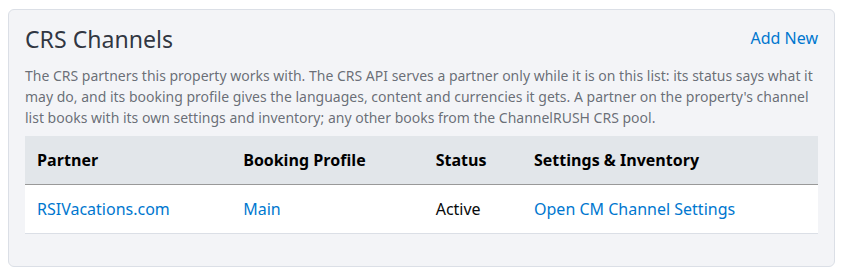
Existing demo example: RSIVacations.com has its own access row. Open CM Channel Settings identifies a direct connection; Active alone does not prove a successful booking.
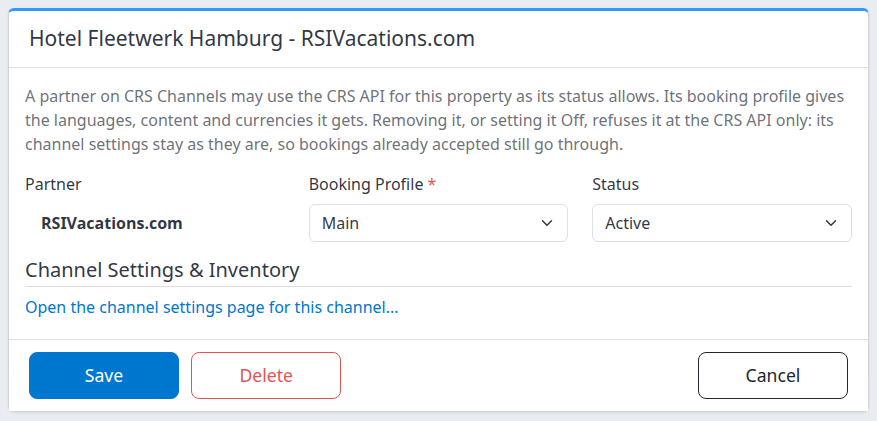
Save the partner row in this separate editor. It does not replace the channel settings or inventory-update workflow.
Save any pending edits on the main CRS Settings form before opening a separate editor. Its main Save submits other editable settings too; switching tabs is not a save. CRS settings saves, including partner-row changes, can also notify connected services, so save only intended changes.
Partner access and field reference
| Field or status | Meaning |
|---|---|
| Partner | The CRS integration allowed to use this property. It is separate from ChannelRUSH CRS, which provides the Pool, and from hosted websites/widget keys. |
| Booking Profile | Required. Supplies languages, content and offered currencies. A booking-engine checkout option should not be assumed to control the partner's own booking interface. |
| Active | Allows supported reads, new bookings, modifications and cancellations, subject to authentication, setup, inventory and booking rules. |
| Test | Allows supported reads. New bookings, modifications and cancellations require the designated test-card condition. For a modification or cancellation, the stored reservation's card is checked; Test is not a cancellation-only mode for existing live bookings. Arrange any test booking with the responsible team. |
| Off – cancellations only | Allows lookup and cancellation of the partner's existing bookings, not availability searches, new bookings or modifications. Other access/setup requirements still apply. |
| Off, or no partner row | Refuses the partner's CRS API access to this property. It does not cancel reservations already accepted. |
| Settings & Inventory: Open CM Channel Settings | The partner is a direct connection and uses its own settings/image. Follow the link to review those settings. |
| Settings & Inventory: Pool | The partner uses ChannelRUSH CRS settings/image because it is not separately listed under the property's Channels. Review ChannelRUSH CRS through Settings - CM. |
| Updating Enabled in channel settings | The inventory-send switch for that connection or product. At connection level, No makes that inventory source unusable for CRS access; it is not a Pool selector. |
| Delete in the partner editor | Removes the CRS access row after confirmation. Its channel settings remain. Coordinate shutdown and handling of accepted bookings; deletion is not a reservation cancellation or refund. |
Check the result
- Reopen CRS Channels for the same property and verify the saved partner, profile and status.
- Check Settings & Inventory against the chosen direct/Pool pattern. An absent setup warning is not an authentication test.
- Reopen the relevant Channel Settings—the partner's own settings for direct inventory, or ChannelRUSH CRS for the Pool. Confirm the mappings and Updating Enabled values you intended to save.
- Confirm that the responsible PMS/inventory workflow is updating the correct image, products and dates. Do not infer current inventory from the partner's Active status.
- Have the partner or responsible administrator check an availability search for the intended property, room/plan, dates, guest count, language and currency without placing a reservation.
- Treat a successful search as a search result only. It does not establish live-booking permission, payment success or reservation delivery. A test-status partner can search while ordinary live booking remains restricted.
Common problems
| Symptom | What to check and do next |
|---|---|
| The partner appears under Channels but cannot use the CRS API | Check its separate CRS Channels row, booking profile and status. Confirm production API access with support; a channel connection alone is not an access grant. |
| A direct partner stops working after Updating Enabled is set to No | It has not switched to shared inventory. Recheck the intended design with the administrator. Restore the intended setting only when its mappings and inventory workflow are ready. |
| The row says Pool but the partner is refused | Check that ChannelRUSH CRS is in Channels, set up and Updating Enabled is Yes. Ask support to verify the partner's channel-wide API access. |
| Active is shown but no stay is offered | Check that CRS is enabled for the property, then check usable inventory in the selected image, enabled CRS rooms/plans, mappings, room/plan assignments, restrictions and the booking profile's offered currency. Active is permission, not availability. |
| Search works but booking or cancellation is refused | Check Status, especially Test, and the exact response. Do not switch a live reservation to a test procedure or keep retrying a booking. Ask support to investigate the specific operation. |
| The partner is absent from Add New | It may already have a row, or may not be an eligible CRS partner. Check the existing list first, then ask support. Do not add a different partner as a substitute. |
| Save reports a missing booking profile or another validation error | Select an existing profile for this property and resolve the reported rules. Reopen the saved row after an uncertain result before repeating the change. |
| Updating Enabled is missing or editing is disabled | Ask the administrator to check Channel Settings and Channel Settings - Login Info permissions, separately from Booking Engine / CRS - Settings. |
| A partner's rates differ from the shared ChannelRUSH CRS rates | Confirm whether the partner is listed under Channels. A direct connection uses its own image even when a Pool connection also exists. |
For support, provide the property, partner, intended direct/Pool pattern, operation, exact error, affected stay dates and action time with time zone. Do not include passwords, API tokens, card details or guest personal information. Avoid repeated saves, mapping pulls or inventory sends while the outcome is uncertain.
Related
- Set up and maintain ChannelRUSH CRS — broader property CRS settings, booking profiles, content and photos.
- Set up and edit a CRS rate plan — CRS plan definitions and room assignments.
- Channel settings and mapping — detailed channel-side form and mapping controls.